Knowledge articles can help you solve cases more quickly
by providing in-depth troubleshooting steps and other detailed information.
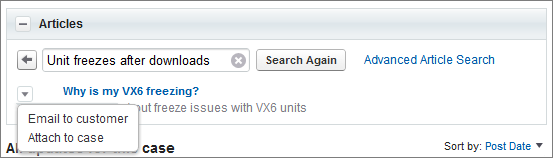
Use the articles tool in Case Feed to search for articles relevant to the case you're working
with, attach articles to the case, and email them to customers.
Required Editions
| User Permissions
Needed |
| To use articles in Case Feed: |
Manage Cases
AND
Read
on at least one article type
|
- Click
 to open the articles tool.
- By default, the tool shows articles with keywords or phrases
similar to the subject and description of the case you're working
with. If you don't see the article you want, type new terms
in the search box and click Search Again, or
click Advanced Article Search for more options.
- Click the title of an article to open it in a new window
if you want to see more information about it than just the title and
the summary.
- When you find the article you want, choose what you want
to do with it:
- Select Email to customer to attach the article
to a message as a PDF.
- Select Attach to case to include the article
as a case attachment.