
Use an Outbound Message step to send a message from the bot to your customer.
Required Editions
| View supported editions. |
| User Permissions Needed | |
|---|---|
| To build and manage Einstein Bots: |
Customize Application OR Modify Metadata OR Manage Bots |
- To add a Message step to the dialog, from the Dialog Component Library, drag the Message step onto the canvas.
-
In the Step Properties panel, enter the outgoing message from your bot to the
customer.
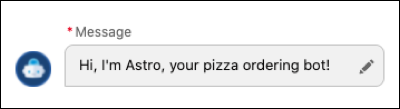
A message can be static text or dynamic text from merge fields. The merge fields reference objects and fields that are currently stored in your bot variables. The merge field syntax is: {!API_VariableName} or {!API_VariableName.Field}.
You can call standard fields in standard objects using the {!FieldName} format found in Object Manager. For custom fields, use the Field Name and include __c at the end: {!CustomField__c}. To call a specific record, use {!Record.Field}.
To call an item in a list variable, use FieldName[X], with X referring to the location of the item in the list. Einstein Bots uses a zero-based index with list variables, you can call the first item of the list using FieldName[0].
 Note Starting in September 2025, you can't add HTML elements, attributes, and scopes that pose potential security risks to your bots' dialog message steps. For example, <script>, <a>, and <iframe> elements are no longer allowed in bot messages. Active Einstein bots that already use these HTML elements, attributes, and scopes can continue using them.
 -
Save the dialog.
 Tip Start the conversation between your bot and your customers with a friendly message that identifies the bot. For example, “Welcome! I’m Service Bot.” Then in the Next Step, you can build a menu to add after the message or redirect the customer to a separate main menu dialog.