---
schema_version: "1"
id: 8a27db661f30169ed8f53def2e9d2abc6948e1826ada86bac8b73f789448036e
title: Set Up a Dialog Message Step
collection: admin
version: current
locale: en-us
portal_url: https://docs.salesforce.com/admin/current/en-us/service/264-0-0/bots_service_setup_dialog_message.md
canonical_url: https://help.salesforce.com/s/articleView?id=service.bots_service_setup_dialog_message.htm&release=264.0.0&type=5
source_site: help.salesforce.com
content_type: documentation
content_hash: df654ea14cb4247e4fc082ad727244ca3cda40f523513804c4a820b5e5c5ee50
description: Use an Outbound Message step to send a message from the bot to your customer.
products:
  - Service Cloud
  - Service Intelligence
release: "264"
---
# Set Up a Dialog Message Step

Use an Outbound Message step to send a message from the bot to your customer.

### Required Editions

<table class="slds-table slds-table_bordered slds-max-medium-table_stacked slds-m-bottom_small edition"><colgroup><col></colgroup><tbody><tr class=""><td class="slds-cell-wrap" style="vertical-align:top;"><a href="https://help.salesforce.com/s/articleView?id=service.einstein_service_intro.htm&amp;language=en_US" target="_blank">View supported editions</a>.</td></tr></tbody></table>

<table class="slds-table slds-table_bordered slds-max-medium-table_stacked slds-m-bottom_small permission">
        <colgroup>
          <col style="width:50%">
          <col style="width:50%">
        </colgroup>
        <thead class="slds-text-title_caps ">
          <tr class="">
            <th scope="colgroup" class="slds-cell-wrap" colspan="2" style="text-align:center;vertical-align:top;" id="d90719e57">User Permissions Needed</th>
          </tr>
        </thead>
        <tbody>
          <tr class="">
            <td data-label="User Permissions Needed" class="slds-cell-wrap" style="vertical-align:top;" headers="d90719e57 ">To build and manage Einstein Bots:</td>

            <td class="slds-cell-wrap" style="vertical-align:top;" headers="d90719e57 ">
              <p>Customize Application</p>
              <p>OR</p>
              <p>Modify Metadata</p>
              <p>OR</p>
              <p style="margin-bottom:0;">Manage Bots</p>
            </td>

          </tr>
        </tbody>
      </table>

1. To add a Message step to the dialog, from the Dialog Component Library, drag the **Message** step onto the canvas.
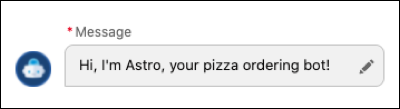
2. In the Step Properties panel, enter the outgoing message from your bot to the customer.
    
    ![Enter a message from the bot to the customer](https://sf-zdocs-cdn-prod.zoominsoftware.com/tdta-service-support_intelligence-264-0-0-production-enus/dcd06a7b-b5ab-448b-a767-4e2e90481508/support_intelligence/images/bots/bots_service_message_cc.png)
    
    A message can be static text or dynamic text from merge fields. The merge fields reference objects and fields that are currently stored in your bot variables. The merge field syntax is: {!API\_VariableName} or {!API\_VariableName.Field}.
    
    You can call standard fields in standard objects using the {!FieldName} format found in Object Manager. For custom fields, use the Field Name and include \_\_c at the end: {!CustomField\_\_c}. To call a specific record, use {!Record.Field}.
    
    To call an item in a list variable, use FieldName\[X\], with X referring to the location of the item in the list. Einstein Bots uses a zero-based index with list variables, you can call the first item of the list using FieldName\[0\].
    
    ![Note](https://sf-zdocs-cdn-prod.zoominsoftware.com/tdta-service-support_intelligence-264-0-0-production-enus/dcd06a7b-b5ab-448b-a767-4e2e90481508/images/icon_note.png)
    
    Note Starting in September 2025, you can't add HTML elements, attributes, and scopes that pose potential security risks to your bots' dialog message steps. For example, <script>, <a>, and <iframe> elements are no longer allowed in bot messages. Active Einstein bots that already use these HTML elements, attributes, and scopes can continue using them.
3. Save the dialog.
    
    ![Tip](https://sf-zdocs-cdn-prod.zoominsoftware.com/tdta-service-support_intelligence-264-0-0-production-enus/dcd06a7b-b5ab-448b-a767-4e2e90481508/images/icon_tip.png)
    
    Tip Start the conversation between your bot and your customers with a friendly message that identifies the bot. For example, “Welcome! I’m Service Bot.” Then in the Next Step, you can build a menu to add after the message or redirect the customer to a separate main menu dialog.

#### See Also

- [Set Up a Dialog](https://help.salesforce.com/s/articleView?id=service.bots_service_setup_dialog.htm&release=264.0.0&type=5 "After you add a dialog, set it up by adding steps (outbound messages, questions, actions, rules) and tell the bot what to do after the dialog finishes. If you’re using intents, train the bot to understand the customer intent associated with the dialog.")