
You can use Map View to create a visual representation of how conversations move through your Einstein Bot.
Required Editions
| View supported editions. |
To access Map View, go to the Dialog page and then click the dropdown in the header bar. Select Map in the dropdown.
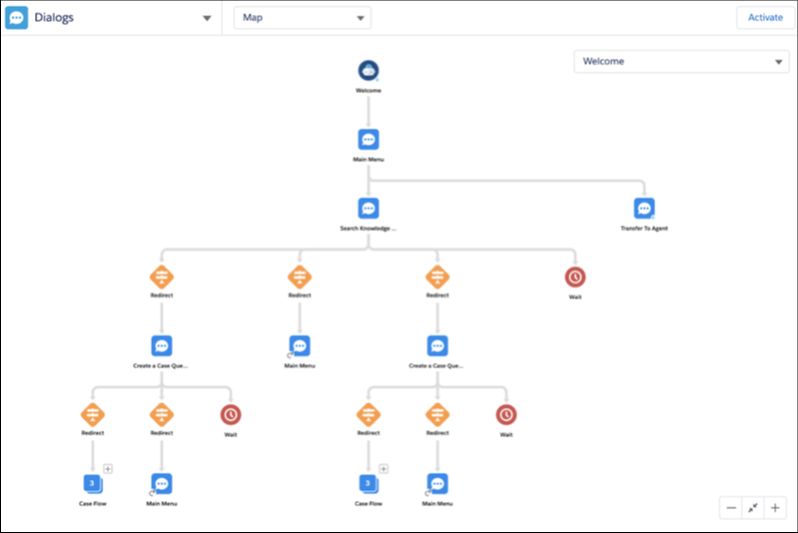
Features of Map View:
- The Map View defaults to view the entire bot in one screen. You can adjust the size by using the zoom buttons in the lower left of the screen.
- Between the plus and minus buttons is a Zoom to View button, which snaps the view to a closer format.
- To switch to the Detail View for that dialog, click a dialog inside the Map View.
- To view the tree for a specific dialog, use the dropdown in the top right of the Map View.
- Map View is fully functional with screen readers.
- You can view up to 400 dialogs in Map View.
Map View Keystroke Commands
- You can use the up, down, left, and right keys to move through the bot with a keyboard.
- Use F6 to navigate between nodes, the dialog dropdown, and the zoom buttons.
- To navigate into a call node, press Shift+Right. To return, press Shift+Left.
- To return to the parent of a call, press Shift+Left.
- Use the Tab key to move between trees and access the zoom buttons.
- Use the Enter key or the spacebar to expand/collapse a dialog or use the zoom buttons.
Map View Visual References
| Icon | Description |
|---|---|

|
The starting dialog for the bot. |

|
A dialog. |

|
Circles in the lower right of a dialog name indicate whether Natural Language Processing is activated. A half-colored circle identifies Exact Match, and a full circle designates Intent Matching. |

|
A reference to a previously used dialog within this dialog. This icon is common for redirects to the Main Menu. |

|
A collapsed tree of children dialogs. The number indicates the number of branches in the next following level. Click the plus icon to expand the detail. |

|
The bot is waiting for a customer response. |

|
A rule action dialog step inside a dialog. Hover over the image to view the rule step conditions. |