
Create secondary languages to your existing bots.
Required Editions
| View supported editions. |
| User Permissions Needed | |
|---|---|
| To build and manage Einstein Bots: |
Customize Application OR Modify Metadata OR Manage Bots |
- To add a secondary language to an Einstein Bot, it needs a primary language set. Before a language appears as an available secondary language for a bot, the language must be enabled in Language Settings and activated in Translation Workbench.
- To test a single-language bot with secondary languages, we recommend that you clone the bot first before adding secondary languages. Read more at Clone a Bot.
- Einstein Bots only supports languages listed at Define Languages for your Einstein Bot. To get access to all of the languages Einstein Bots supports, review Salesforce supported languages. Where necessary, enable end-user and platform-only languages on the Language Settings page in Setup. Language support varies by intent model.
- Translation Workbench Prerequisites
- Einstein Bots uses Translation Workbench to store translations. Turn on Translation Workbench, set up secondary languages, and define translator users in Translation Workbench before moving to the Bot Builder.
- To edit translations, users require the Manage Translation permission or assignment as a translator for a specific language in Translation Workbench. Users without the correct permissions can view but not edit translations in the Bot Builder.
- Users with permissions to translate dialog text for a specific language can manage translations even with read-only access to the rest of the bot.
- Einstein Bots supports translations entered manually or through import and export. When you import and export translations, the dialog name field must be complete for each dialog and language in order to populate the translated messages inside of the dialog.
- In the Bot Builder menu, click Overview.
- In Conversation Languages, click Add.
-
Select the secondary language from the dropdown, and click
Add.
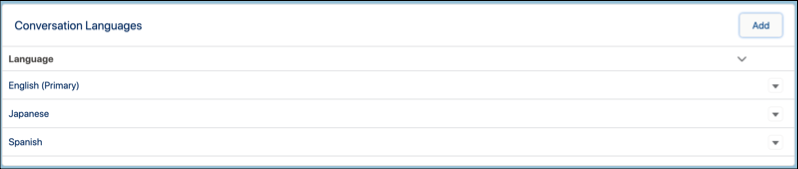
To remove a secondary bot language, click Remove from the dropdown next to the language on the Bot Overview page. Removing a secondary language removes it from the bot. Your translated content and utterances reappear if you add the language back.