---
schema_version: "1"
id: 0c8f8d34bd8324c7163183daf6c5ce32b305dea3d94ee38eb3ab6f672d5080fe
title: Add or Remove a Secondary Bot Language
collection: admin
version: current
locale: en-us
portal_url: https://docs.salesforce.com/admin/current/en-us/service/264-0-0/bots_service_language_secondary.md
canonical_url: https://help.salesforce.com/s/articleView?id=service.bots_service_language_secondary.htm&release=264.0.0&type=5
source_site: help.salesforce.com
content_type: documentation
content_hash: bfbf20c9414768392f7445ddbc40c6010f5c304dfefb07956b8cd85524d0f078
description: Create secondary languages to your existing bots.
products:
- Service Cloud
- Service Intelligence
release: "264"
---
# Add or Remove a Secondary Bot Language
Create secondary languages to your existing bots.
### Required Editions
- To add a secondary language to an Einstein Bot, it needs a primary language set. Before a language appears as an available secondary language for a bot, the language must be enabled in Language Settings and activated in Translation Workbench.
- To test a single-language bot with secondary languages, we recommend that you clone the bot first before adding secondary languages. Read more at [Clone a Bot](https://help.salesforce.com/s/articleView?id=service.bots_service_clone.htm&release=264.0.0&type=5 "Admins can clone a bot quickly to help with development, or they can create a similar bot for a different use case.").
- Einstein Bots only supports languages listed at [Define Languages for your Einstein Bot](https://help.salesforce.com/s/articleView?id=service.bots_service_language_define.htm&release=264.0.0&type=5 "Your global customers expect your bots to understand their native language. To know what your customers are saying, your bots must know how a language works. Bots use natural language understanding (NLU) and named entity recognition (NER) to understand language and local details such as dates, currency, or number formatting. Einstein Bots that use a specific language can better understand the customer and route them to the correct dialog."). To get access to all of the languages Einstein Bots supports, review [Salesforce supported languages](https://help.salesforce.com/s/articleView?id=xcloud.faq_getstart_what_languages_does.htm&type=5&language=en_US). Where necessary, [enable end-user and platform-only languages](https://help.salesforce.com/s/articleView?id=xcloud.admin_select_languages_for_your_org.htm&type=5&language=en_US) on the Language Settings page in Setup. Language support varies by intent model.
- Translation Workbench Prerequisites
- Einstein Bots uses Translation Workbench to store translations. Turn on Translation Workbench, set up secondary languages, and define translator users in Translation Workbench before moving to the Bot Builder.
- To edit translations, users require the **Manage Translation** permission or assignment as a translator for a specific language in Translation Workbench. Users without the correct permissions can view but not edit translations in the Bot Builder.
- Users with permissions to translate dialog text for a specific language can manage translations even with read-only access to the rest of the bot.
- Einstein Bots supports translations entered manually or through import and export. When you import and export translations, the dialog name field must be complete for each dialog and language in order to populate the translated messages inside of the dialog.
1. In the Bot Builder menu, click **Overview**.
2. In Conversation Languages, click **Add**.
3. Select the secondary language from the dropdown, and click **Add**.
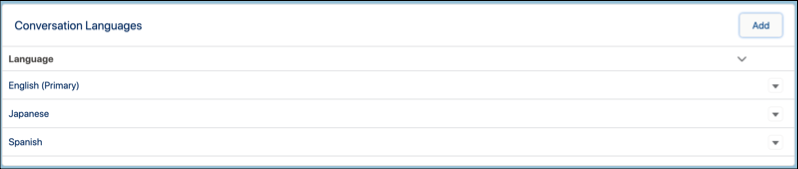
To remove a secondary bot language, click **Remove** from the dropdown next to the language on the Bot Overview page. Removing a secondary language removes it from the bot. Your translated content and utterances reappear if you add the language back.