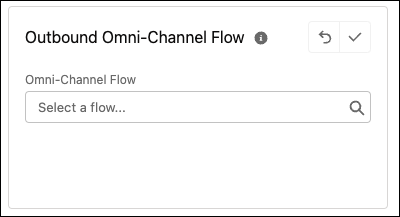
Route conversations from your bot with the default Outbound Omni-Channel Flow setting.
Your enhanced bot uses the default outbound flow as the routing destination for the Transfer to
Agent system dialog and the Transfer to Agent Next Step. To route conversations to an outbound
Omni-Channel flow other than the default, you can set up a custom transfer with the Set Routing
Type dialog step.
Required Editions
| User Permissions Needed |
| To build and manage Einstein Bots: |
Customize Application
OR
Modify Metadata
OR
Manage Bots
|
Before you begin, in Flow Builder, create an Omni-Channel flow for your transfer use case. To
create and manage Omni-Channel flows, turn on Omni-Channel.
These Help topics cover how to create an outbound Omni-Channel flow from
scratch. But depending on how you created your enhanced bot, Salesforce may have
done some of the work for you. Each path to creating an enhanced bot gives you a
different head start on outbound routing. To learn more, visit Create an Enhanced
Bot.
After you create your Omni-Channel flow, go to the Bot Builder to
set up a transfer using your flow.
-
From the Bot Builder menu, select Overview.
-
In the Settings section, to edit the Outbound Omni-Channel Flow panel, click
 .
.
-
In the Omni-Channel Flow field, select an Omni-Channel flow.
This field shows active and inactive Omni-Channel flows. If you select an inactive flow, the
flow doesn’t route conversations from your bot until you activate it in Flow Builder.
-
To save your changes, click
 .
.
When the bot attempts a transfer with the Outbound Omni-Channel Flow setting and either
no flow or an inactive flow is specified, the bot moves to the No Agent system
dialog.