---
schema_version: "1"
id: 184b5fdd7a375ae35f905b714b60dc76e43856c733cdb29d3c3eff2838761a31
title: Specify a Default Outbound Omni-Channel Flow
collection: admin
version: current
locale: en-us
portal_url: https://docs.salesforce.com/admin/current/en-us/service/264-0-0/bots_service_enhanced_route_from_default.md
canonical_url: https://help.salesforce.com/s/articleView?id=service.bots_service_enhanced_route_from_default.htm&release=264.0.0&type=5
source_site: help.salesforce.com
content_type: documentation
content_hash: 0831d13e4a76d10769d4183ee37a6d038bee19c2aaae5d0a37c1fc53e0fadf80
description: Route conversations from your bot with the default Outbound Omni-Channel Flow setting. Your enhanced bot uses the default outbound flow as the routing destination for the Transfer to Agent system dialog and the Transfer to Agent Next Step. To route conversations to an outbound Omni-Channel flow other than the default, you can set up a custom transfer with the Set Routing Type dialog step.
products:
- Service Cloud
- Service Intelligence
release: "264"
---
# Specify a Default Outbound Omni-Channel Flow
Route conversations from your bot with the default Outbound Omni-Channel Flow setting. Your enhanced bot uses the default outbound flow as the routing destination for the Transfer to Agent system dialog and the Transfer to Agent Next Step. To route conversations to an outbound Omni-Channel flow other than the default, you can set up a custom transfer with the Set Routing Type dialog step.
### Required Editions
Before you begin, in Flow Builder, create an Omni-Channel flow for your transfer use case. To create and manage Omni-Channel flows, [turn on Omni-Channel](https://help.salesforce.com/s/articleView?id=service.omnichannel_enable.htm&type=5&language=en_US).
- [Route Conversations to an Enhanced Bot](https://help.salesforce.com/s/articleView?id=service.bots_service_enhanced_route_to.htm&release=264.0.0&type=5 "Create an Omni-Channel flow to route conversations to your bot over enhanced Messaging channels, including Enhanced Chat and enhanced third-party channels. You can add powerful business rules to a flow to send a conversation to a bot or a service rep based on your criteria.")
- [Omni-Channel Flow: Route Conversations to Queues](https://help.salesforce.com/s/articleView?id=service.omnichannel_route_to_queues.htm&type=5&language=en_US)
- [Omni-Channel Flow: Route Conversations to a Specific Agent](https://help.salesforce.com/s/articleView?id=service.omnichannel_route_to_specific_agent.htm&type=5&language=en_US)
- [Omni-Channel Flow: Route Conversations Using Skills](https://help.salesforce.com/s/articleView?id=service.omnichannel_route_using_skills.htm&type=5&language=en_US)
These Help topics cover how to create an outbound Omni-Channel flow from scratch. But depending on how you created your enhanced bot, Salesforce may have done some of the work for you. Each path to creating an enhanced bot gives you a different head start on outbound routing. To learn more, visit [Create an Enhanced Bot](https://help.salesforce.com/s/articleView?id=service.bots_service_enhanced_create.htm&release=264.0.0&type=5 "Use the Guided Setup Flow to create an enhanced bot from scratch or from a template. Or you can clone an existing bot.").
After you create your Omni-Channel flow, go to the Bot Builder to set up a transfer using your flow.
1. From the Bot Builder menu, select **Overview**.
2. In the Settings section, to edit the Outbound Omni-Channel Flow panel, click .
3. In the Omni-Channel Flow field, select an Omni-Channel flow.
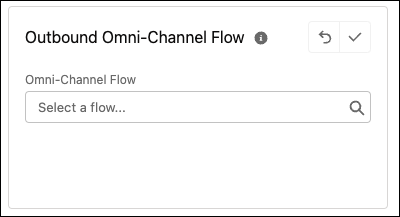
This field shows active and inactive Omni-Channel flows. If you select an inactive flow, the flow doesn’t route conversations from your bot until you activate it in Flow Builder.
4. To save your changes, click .
When the bot attempts a transfer with the Outbound Omni-Channel Flow setting and either no flow or an inactive flow is specified, the bot moves to the No Agent system dialog.
#### See Also
- [Set Up a Dialog](https://help.salesforce.com/s/articleView?id=service.bots_service_setup_dialog.htm&release=264.0.0&type=5 "After you add a dialog, set it up by adding steps (outbound messages, questions, actions, rules) and tell the bot what to do after the dialog finishes. If you’re using intents, train the bot to understand the customer intent associated with the dialog.")
- [Understand System Bot Dialogs](https://help.salesforce.com/s/articleView?id=service.bots_service_system_bot_dialog.htm&release=264.0.0&type=5 "Einstein Bots are built for conversation. To make setup a breeze, some of the most common dialogs are included with each new bot. These dialogs allow you to quickly transfer conversations to a service rep, or gracefully end a chat. You can customize each message to your company’s voice and tone.")