Context variables for the contact are included, but you can create any type of context variable to use in your bot implementation. Use context variables for product names, store locations, referral URLs, or items in a customer’s shopping cart.
Required Editions
| View supported editions. |
| User Permissions Needed | |
|---|---|
| To build and manage Einstein Bots: |
Customize Application OR Modify Metadata OR Manage Bots |
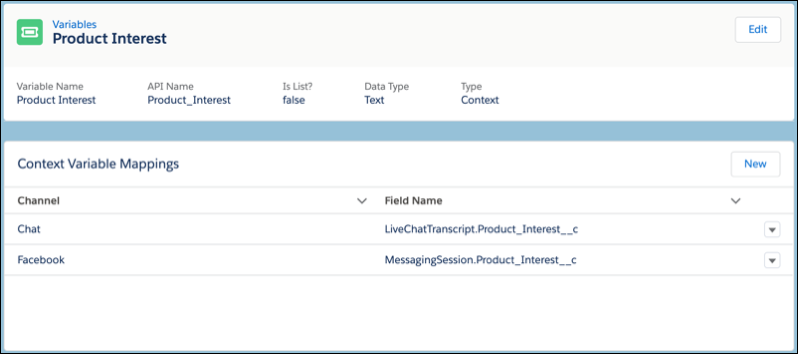
Custom context variables can be linked to multiple channels and objects. The Chat channel can map to the LiveChatTranscript object and the Messaging Channels can map from either the MessagingSession or MessagingUser objects.
Deleting mappings on custom context variables affect functionality. We recommend that you note where custom context variables are used to prevent data loss or showing merged fields inside a conversation.
- Start with a deactivated bot. If your bot is active, click Deactivate.
- In the Bot Builder menu, select Variables.
-
To create a variable, click New. Set the type to Context and give it
a name and Data Type. Save your changes.
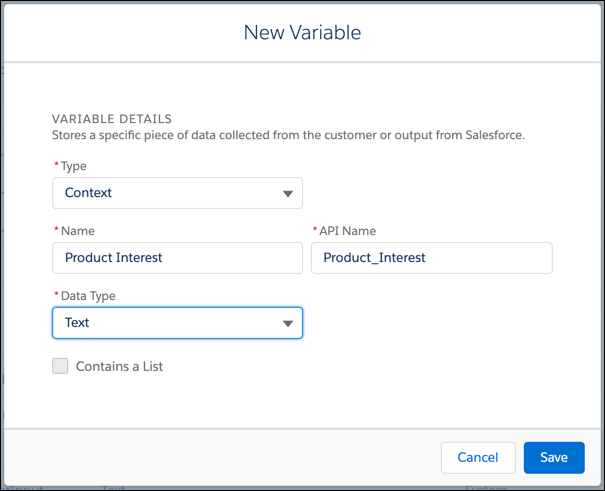
 Note Custom context variables must have a Data Type of Text, Number, or ID.
 - To open the variable detail page, click the variable name. To create a variable mapping, click New.
-
To map to the variable, select the Channel and the Field. Save your changes. The mapping
shows with the channel and the API name of the mapped field.