
Review guidelines for making and receiving calls, including basic calling features and tips on how to get started.
Required Editions
| Available in: Lightning Experience |
|
Available with Sales Cloud and Service Cloud in: Essentials, Professional, Enterprise, Performance, and Unlimited Editions Sales Dialer is available for an additional cost as an add-on license. |

To use telephony features directly in Salesforce, we recommend that you modernize your experience by moving to Salesforce Voice. Salesforce Voice offers many of the telephony features that you love and more. See Get to Know Salesforce Voice.

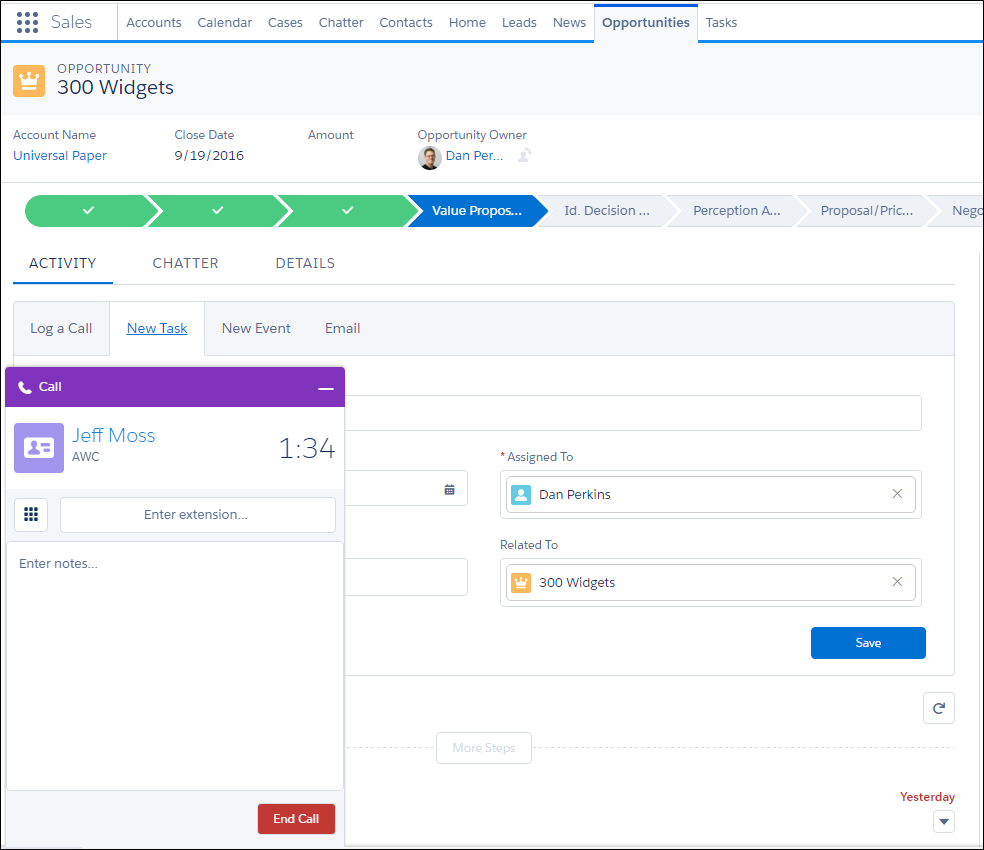
The call appears in the utility bar at the bottom of your screen, so you can multitask while you’re on a call. You can access relevant records, add call notes directly in the call panel, or create tasks, events, or other records related to the call.
When you call a landline number that’s busy, the call ends without ringing or a busy signal.

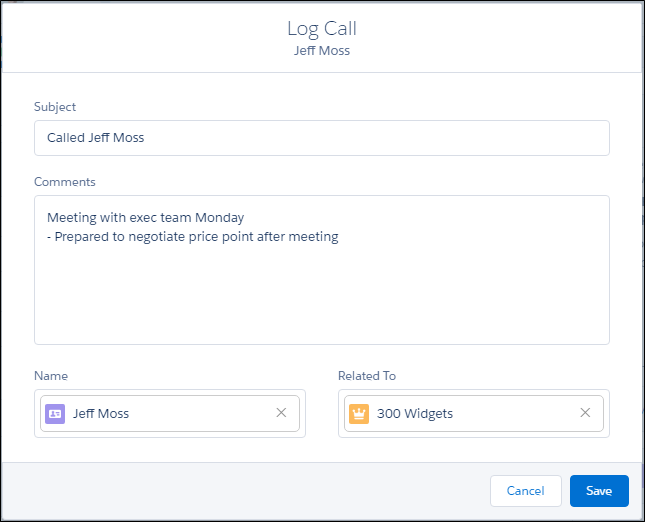
Select Auto-log to have call details added to the activity timeline automatically. A call log is created if the number dialed is related to an existing record. If it isn’t, a task is created, but a call log related to a record is not.
You can also add more details manually after a call has ended.
Optionally, you can also receive calls with Dialer. Incoming calls show a list of related activities, so you have access to relevant information before you’ve even answered the call.
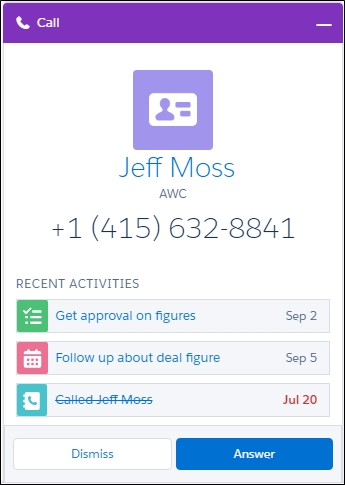
If you don’t answer within 30 seconds or dismiss the call, the call ends. If you’re not on Lightning Experience when someone calls, the person calling hears a message that you’re not available. If voicemail is enabled in your org, you can also receive and store up to 20 voicemail messages.
With the voicemail drop feature, you can also record messages to leave when you make a call and get someone else’s voicemail. For best results, we recommend reps start their message as soon as the recording begins. Messages can be up to 1 minute long. For now, reps can have 10 voicemail drop recordings.
For information about setting up Sales Dialer, see Set Up Sales Dialer.
- Assign a Dialer Number
Assign a Dialer number from your personal settings so the calls you make and receive don’t appear to be coming from an unknown number. - Assign a Forwarding Number for Dialer
Get your Dialer calls forwarded to your mobile phone or main business line so you never miss a call. You can easily assign a forwarding number from your personal settings. - Sales Dialer Best Practices
For the best calling experience, use a hardwired connection to your network with adequate bandwidth, use a wired headset, and set up the proper environment on your machine.