
Give stakeholders access to alignments and specific areas within alignments in Territory Planning. To give access to all alignments within a dataset, add teammates to the dataset. Or limit access to specific alignments or alignment areas when you select them for each teammate along with their access level.
Required Editions
| Available in: both Salesforce Classic (not available in all orgs) and Lightning Experience |
| Available in: Professional, Enterprise, Performance, Unlimited, and Developer Editions with Web Services API enabled |
| User Permissions Needed | |
|---|---|
| To share alignments: |
Sales Planning Ops Analyst permission set AND Query for Datapipelines User for Sales Planning permission set AND SF Maps Territory Planning for Sales Planning permission set |
| To open alignments that were shared with you: | Read on users |

Note Sharing an alignment or area also shares a snapshot of your current legend and layer configuration. Users who you shared the alignment or area with can modify their legend and layer configuration without affecting your legend and layer configuration.
Note Users need read access to the User object in order to open alignments that were shared with them.
-
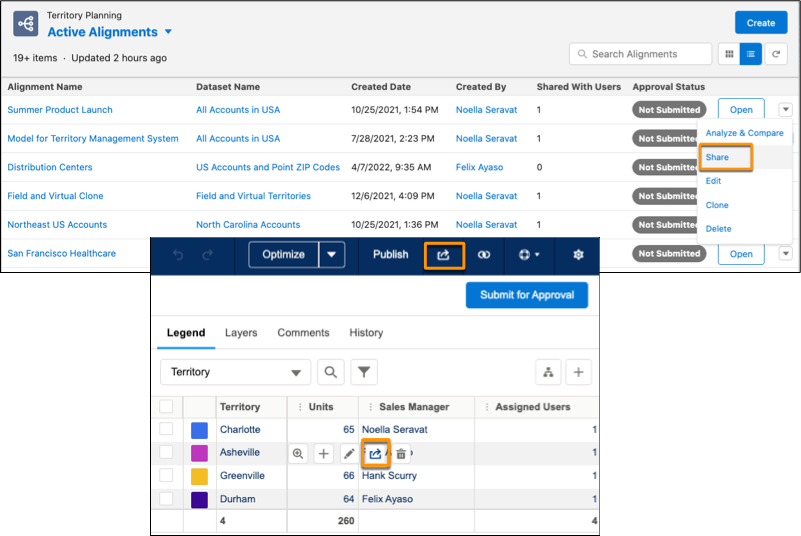
Navigate to the alignment that you want to grant access to. Then select
Share. Or, find your area in the map legend or the territory model
editor and click Share.
-
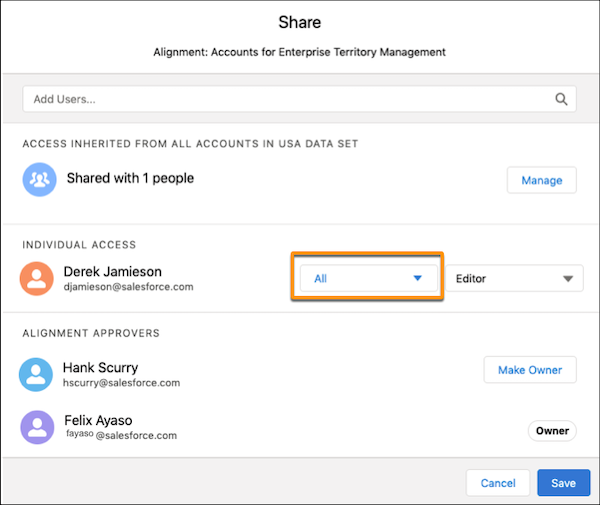
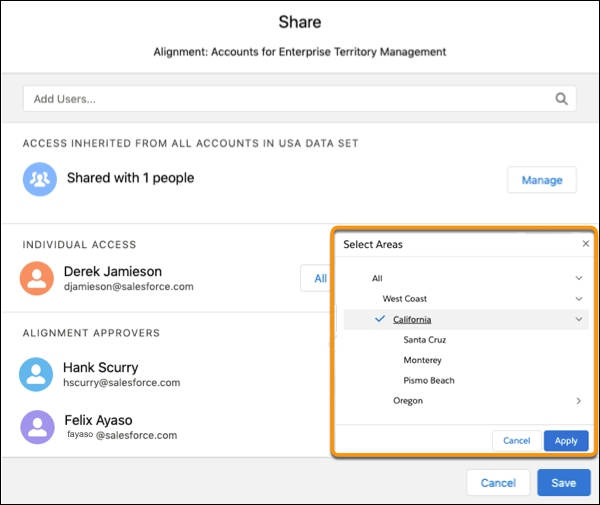
To share an alignment or its areas, add a user, select the areas that you want them to have
access to, and then click Apply.
-
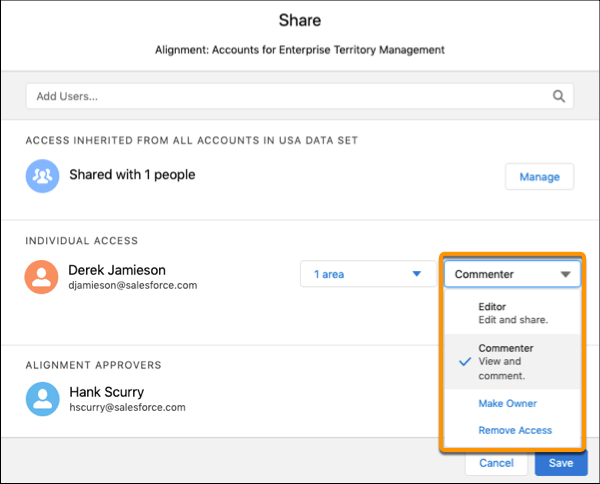
Select the level of access that you want the user to have, and then save your
changes.
-
To turn link sharing on and share an alignment or its areas with all Territory Planning
users, select Sharing and an access level.
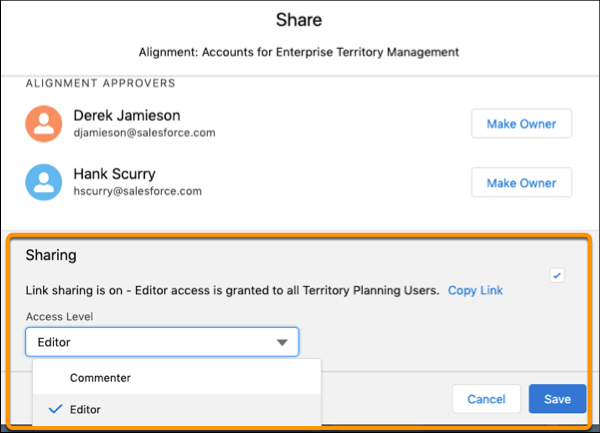
- Save your changes.