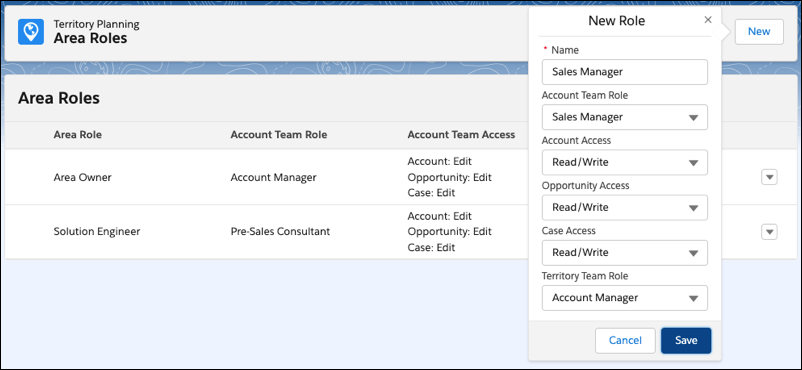
Let your sales and service teams assign specific territory team roles from Salesforce to
areas in Territory Planning. Each role that you create maps to a territory team role. After you
create alignments and publish them to Sales Territories, assigned users and their roles appear in
Salesforce territory models.
Required Editions
| Available in: both Salesforce Classic (not available in all orgs) and Lightning Experience |
| Available in: Professional, Enterprise, Performance, Unlimited, and Developer Editions with Web Services API enabled |
| User Permissions Needed |
| To manage Territory Planning options in the Salesforce Maps package: |
Customize Application |
-
From Setup, in the Quick Find box, enter Installed Packages, and
then select Installed Packages.
-
Next to the Salesforce Maps package, click Configure.
-
Under Territory Planning, click Area Roles.
-
Assign a territory team role to the default area owner or to a new area role.
| To assign a territory team role to... |
Do this... |
| The default area owner |
On the Area Owner role, click Edit, and then select its
corresponding territory team role from Sales Territories.
Keep in mind that you can
change the territory team role assignment, but you can’t delete the default area owner
role.
|
| A new area role |
Click New, and then select its corresponding territory team
role from Sales Territories. |
-
Set access levels for the roles that you want available for territory assignments. Create
any other roles that apply to your territories.
-
Save your work.