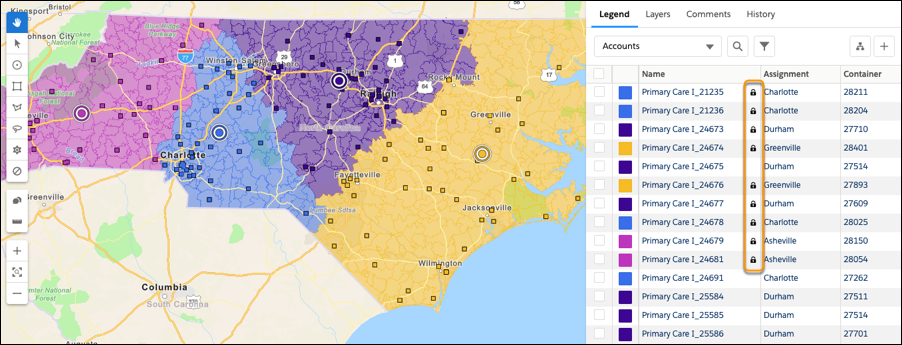
Preserve specific territory assignments in bulk when you add settings that lock the units of your choice in .csv files. Import those files to your alignments in Territory Planning.
Required Editions
| Available in: both Salesforce Classic (not available in all orgs) and Lightning Experience |
| Available in: Professional, Enterprise, Performance, Unlimited, and Developer Editions with Web Services API enabled |
| User Permissions Needed | |
|---|---|
| To modify alignment options: |
Sales Planning Ops Analyst permission set AND Query for Datapipelines User for Sales Planning permission set AND SF Maps Territory Planning for Sales Planning permission set |
- Create a .csv file that includes 15-character or 18-character unit IDs.
-
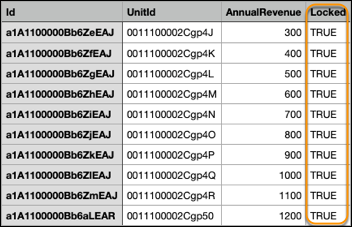
Add a column that represents the setting to lock unit assignments in your .csv file. For the
units with assignments that you want to preserve, enter TRUE. Your .csv
files can include other settings and attributes such as proprietary IDs and annual
revenue.
- Save your work.
-
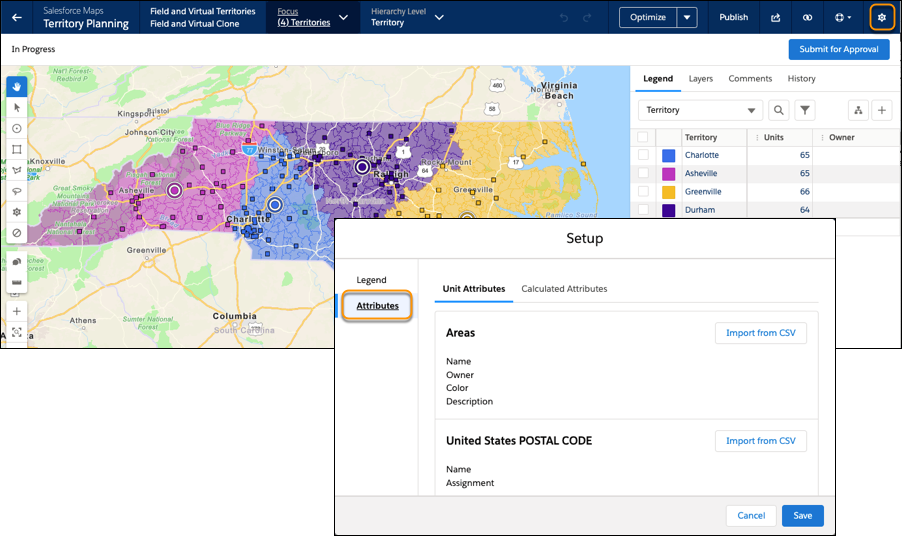
In the alignment that includes the units whose assignments that you want to preserve, click Settings | Attributes.
-
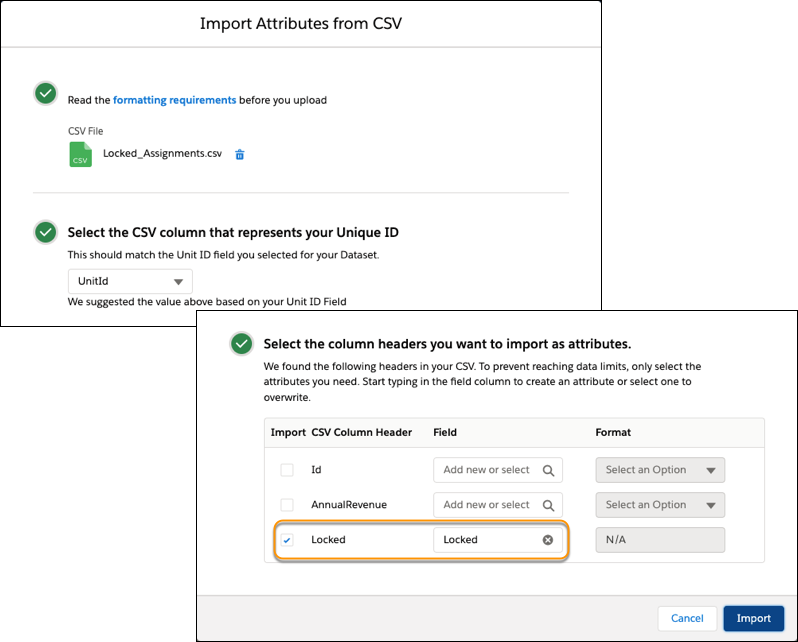
In the section for your units, click Import from CSV. After you
select the file to import, map the column that you added to the Locked
column, and then import the file.
A unit must be unlocked before it can be assigned to another area.
- If a unit is currently unlocked and your CSV sets it to locked with a new area, the unit is locked and reassigned to the area in your CSV.
- If a unit is currently locked and your CSV sets it to locked with a new area, the unit stays locked and isn't reassigned.
- If a unit is currently locked and your CSV sets a new area, the unit isn't reassigned.
- If a unit is currently locked and your CSV sets it to unlocked with a new area, the unit is unlocked and isn't reassigned.
The units whose assignments that you preserve appear with locks.