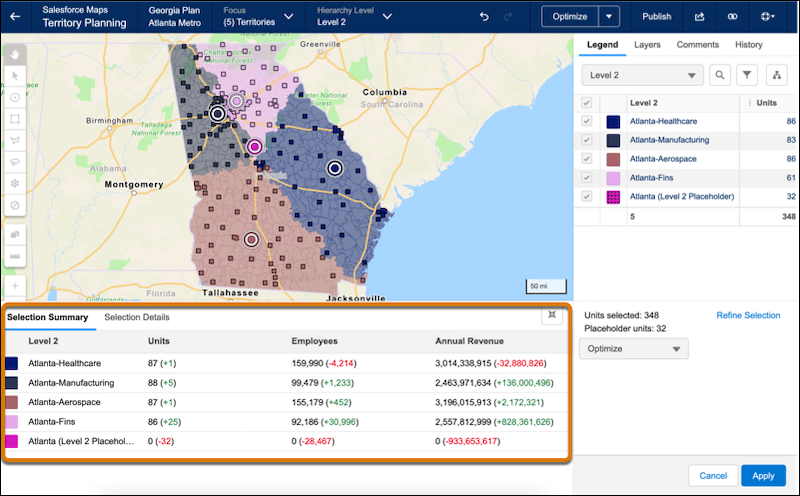
Allocate accounts to and from placeholder territories. Include placeholders when you optimize alignments to assign units exactly how you want in Territory Planning.
Required Editions
| Available in: both Salesforce Classic (not available in all orgs) and Lightning Experience |
| Available in: Professional, Enterprise, Performance, Unlimited, and Developer Editions with Web Services API enabled |
| User Permissions Needed | |
|---|---|
| To modify alignment options: |
Sales Planning Ops Analyst permission set AND Query for Datapipelines User for Sales Planning permission set AND SF Maps Territory Planning for Sales Planning permission set |
- Open an alignment, and set the focus.
-
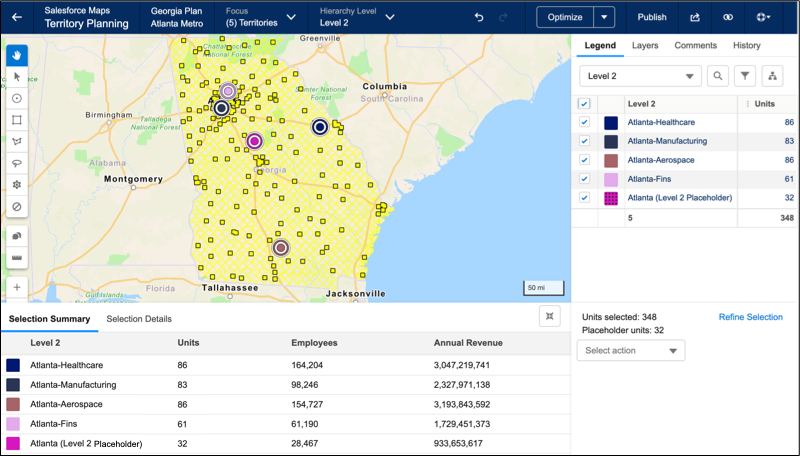
Select the placeholder and any other territories that you want to optimize. As you select
the territories, they appear under Selection Summary along with the number of units
selected.
-
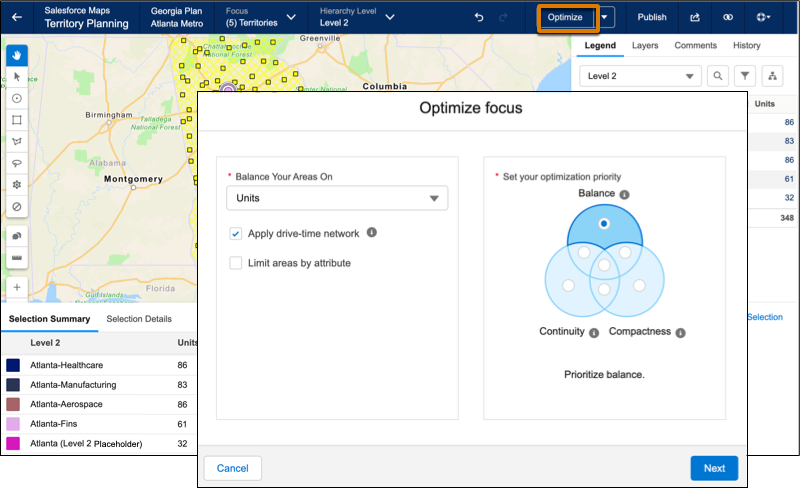
Click Optimize and set the optimization priority. For example, to
distribute units equally across territories, select Balance, and then
click Next.
-
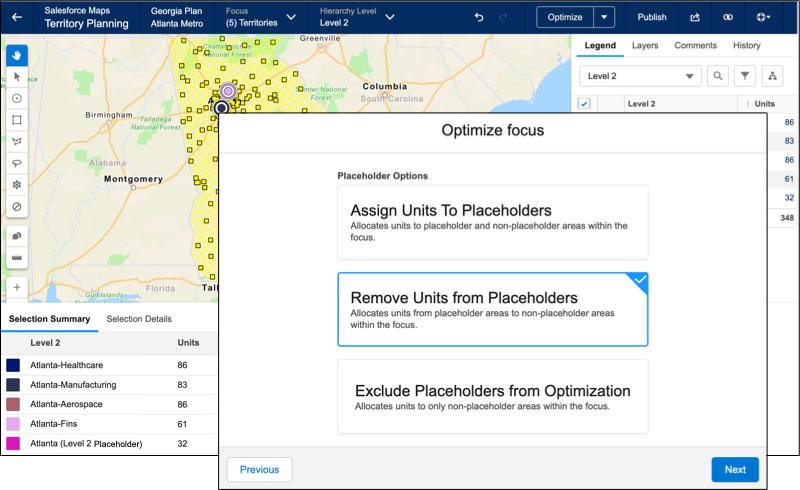
Allocate units. For example, to assign units from placeholder areas to areas that aren’t
placeholders, click Remove Units from Placeholders. Then click
Next.
-
Review the updated metrics that appear under Selection Summary, and then apply those
changes.