Enrich or replace a dataset’s unit attribute data when you import a .csv file into Territory Planning. Overwrite attribute data, such as annual revenue, so that you have the latest numbers when you adjust alignments.
Required Editions
| Available in: both Salesforce Classic (not available in all orgs) and Lightning Experience |
| Available in: Professional, Enterprise, Performance, Unlimited, and Developer Editions with Web Services API enabled |
| User Permissions Needed | |
|---|---|
| To add attributes to alignments: |
Sales Planning Ops Analyst permission set AND Query for Datapipelines User for Sales Planning permission set AND SF Maps Territory Planning for Sales Planning permission set |
-
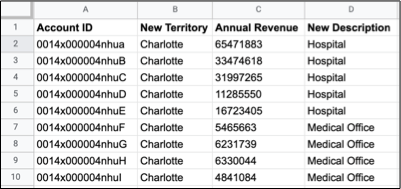
Prepare the attributes in your .csv file file. Include an ID field that matches the dataset’s
unit ID, such as Account ID.
-
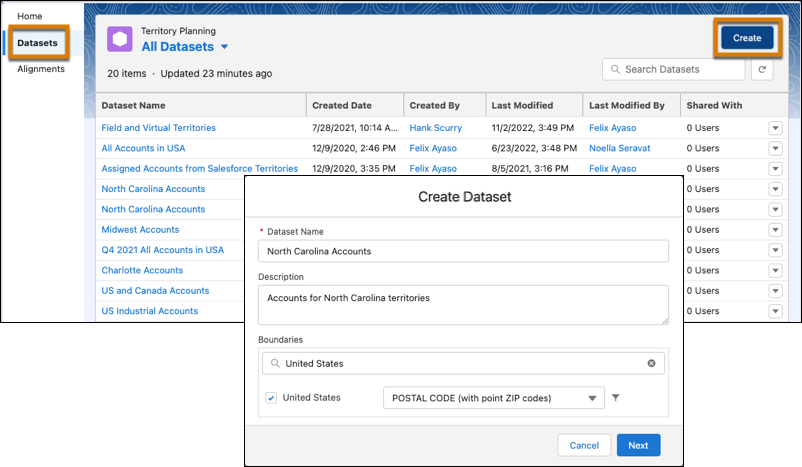
Click Datasets, then click Create. Enter
a name for the dataset and click Next.
-
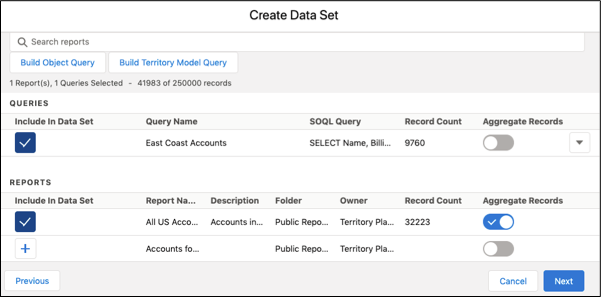
Select any reports and queries that you want to include in the dataset, and click
Next.
-
Click Import from CSV.
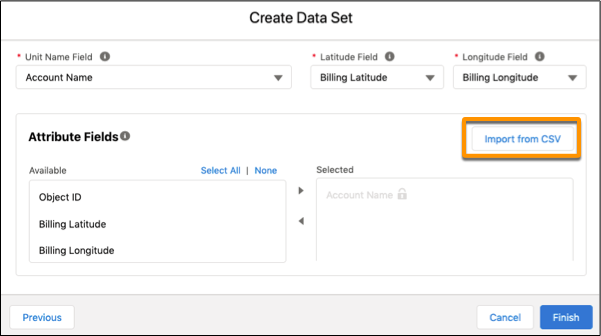
-
Upload the .csv file.
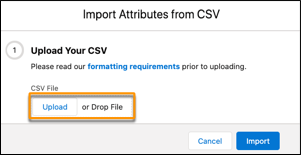
-
Select columns in the .csv file that you want to import.
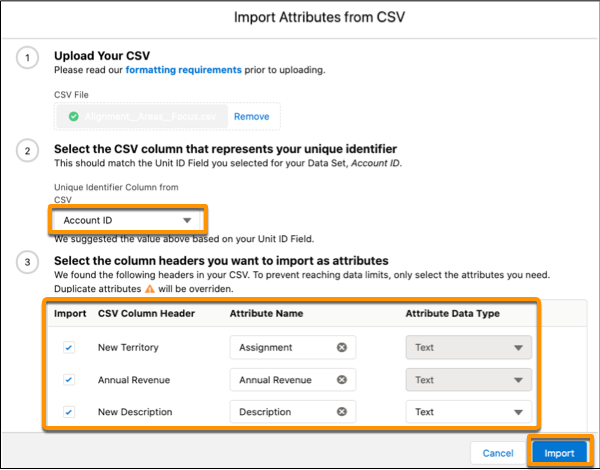
- Select the column that represents the unique ID for each record.
- Select the other columns that you want to import. If you don’t see the field attribute that you want, start typing to add one.
- Select the data type for new attributes, and click Import.
-
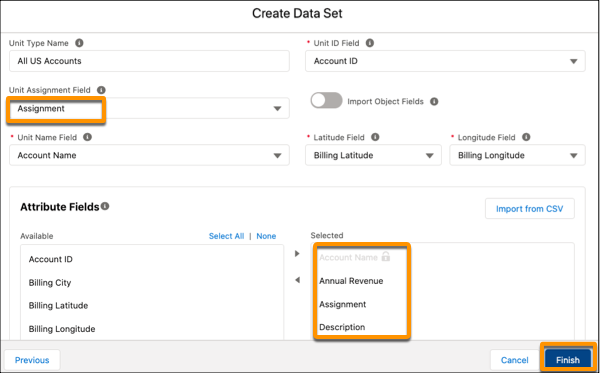
Confirm the updated unit assignment field and attribute fields that you selected, then
click Finish to build the dataset.