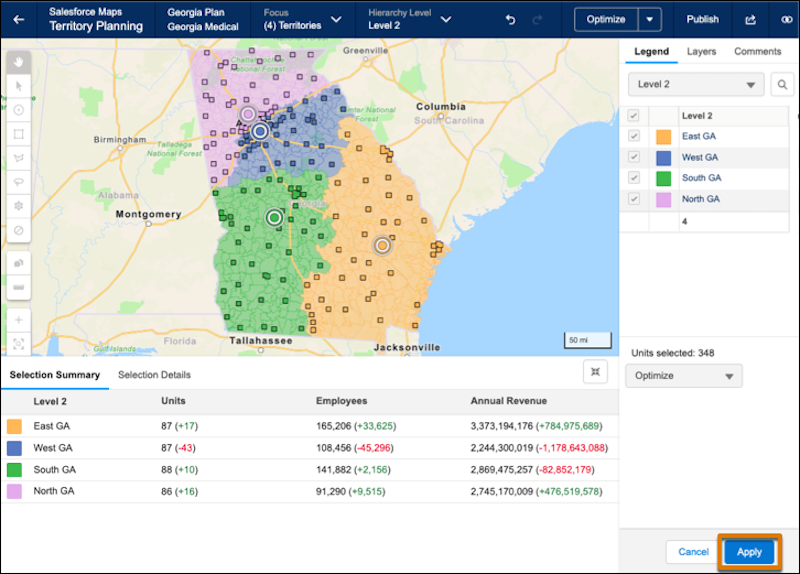
Reassign accounts to meet the changing needs of your business in Territory Planning. When you optimize territories or assign units, review the impact of proposed assignments before committing to them.
Required Editions
| Available in: both Salesforce Classic (not available in all orgs) and Lightning Experience |
| Available in: Professional, Enterprise, Performance, Unlimited, and Developer Editions with Web Services API enabled |
| User Permissions Needed | |
|---|---|
| To modify alignment options: |
Sales Planning Ops Analyst permission set AND Query for Datapipelines User for Sales Planning permission set AND SF Maps Territory Planning for Sales Planning permission set |
- Open an alignment, and set the focus.
-
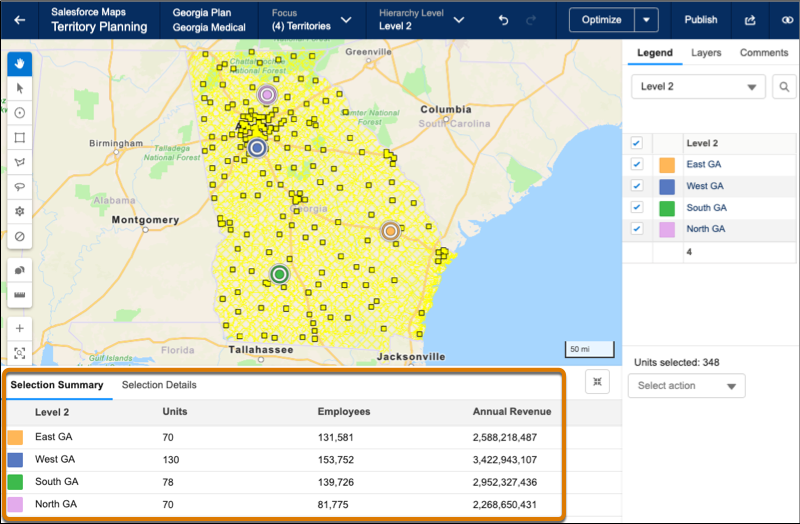
Select territories that you want to optimize or update. As you select the territories, they
appear under Selection Summary along with the number of units selected.
-
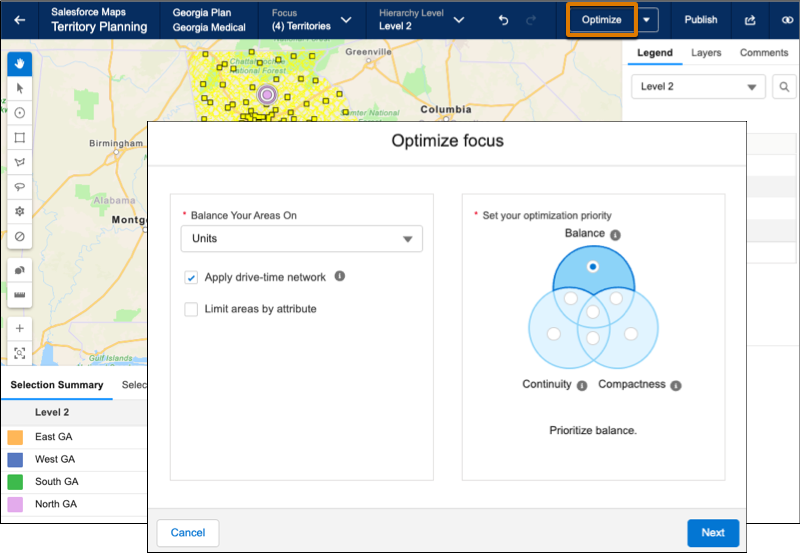
Optimize territories or assign units. For example, to distribute units equally across
territories and see how those changes appear before committing to them, click
Optimize. Then select Balance and click
Next.
-
Review the updated metrics under Selection Summary, and then apply those changes.