
Update unit attributes in alignments when you import a CSV file into Territory Planning. For example, assign accounts to a new territory as part of routine territory optimization or to adjust for compelling events.
Required Editions
| Available in: both Salesforce Classic (not available in all orgs) and Lightning Experience |
| Available in: Professional, Enterprise, Performance, Unlimited, and Developer Editions with Web Services API enabled |
| User Permissions Needed | |
|---|---|
| To add attributes to alignments: |
Sales Planning Ops Analyst permission set AND Query for Datapipelines User for Sales Planning permission set AND SF Maps Territory Planning for Sales Planning permission set |
-
Prepare the attributes in your .csv file file. Include an ID field, such as Account
ID.
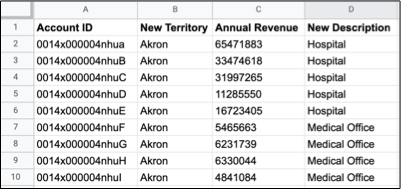
To update assignments for any locked units, Territory Planning requires two separate CSV file imports. For the first import, include the removal of unit locks. For the second import, include updates to unit assignments.
-
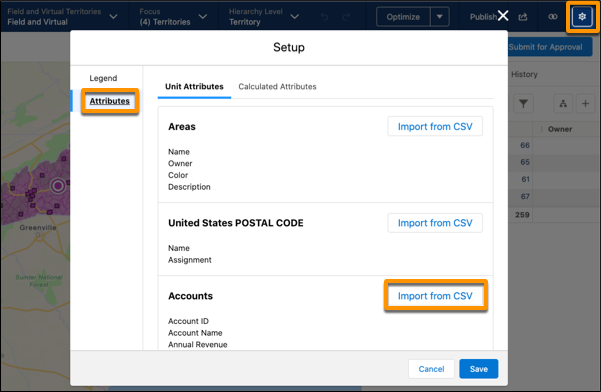
From an open alignment, click Settings | Attributes. Then at the unit level, click Import from CSV.
-
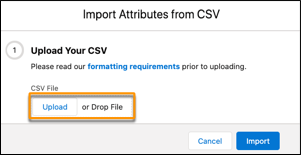
Upload the .csv file file.
-
Select columns in the .csv file that you want to import.
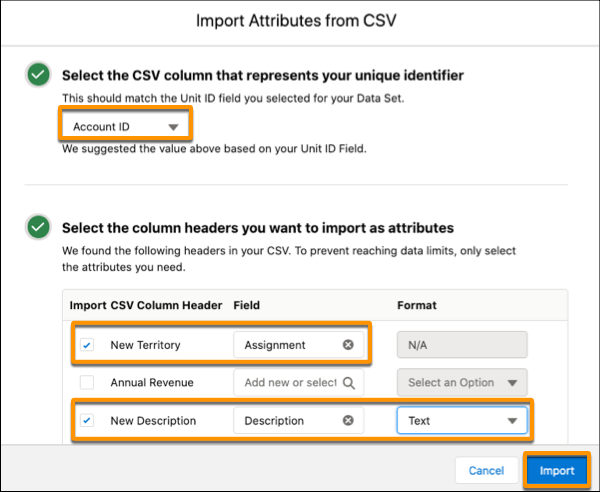
- Select the column that represents the unique ID for each record.
- Select the other columns that you want to import. If you don’t see the field attribute that you want, start typing to add one.
- Select the data type for new attributes, and click Import.
Territory Planning applies the updates to the alignment. New attributes appear with from CSV appended to their names.
