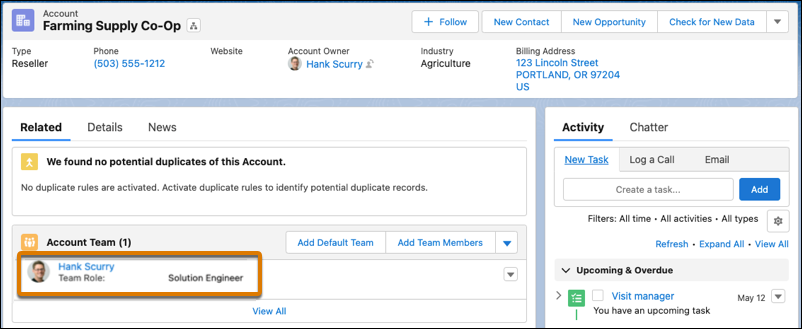
Ensure that team members get access to only the accounts that they’re responsible for when you assign members and select their roles within each territory area in Territory Planning. Then publish team assignments to accounts or to .csv files for importing into other systems.
Required Editions
| Available in: both Salesforce Classic (not available in all orgs) and Lightning Experience |
| Available in: Professional, Enterprise, Performance, Unlimited, and Developer Editions with Web Services API enabled |
| User Permissions Needed | |
|---|---|
| To modify alignment options: |
Sales Planning Ops Analyst permission set AND Query for Datapipelines User for Sales Planning permission set AND SF Maps Territory Planning for Sales Planning permission set |
- Open an alignment and set the focus.
-
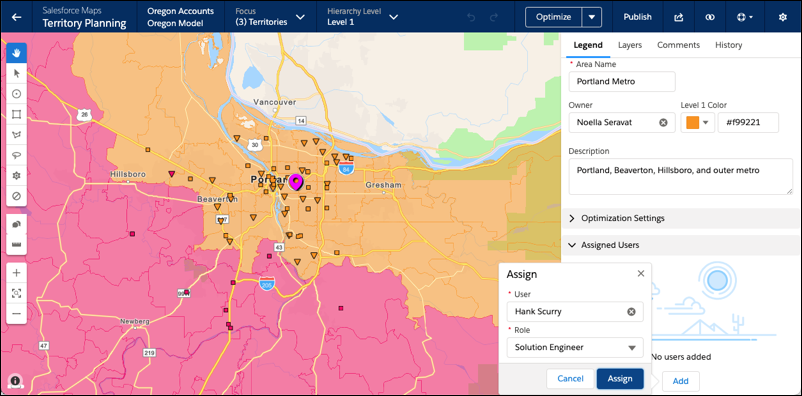
In each territory, assign account team members and select their roles.
To assign account team members to multiple areas simultaneously, create a .csv file that includes those users and their roles. Then import the .csv file into the alignment.
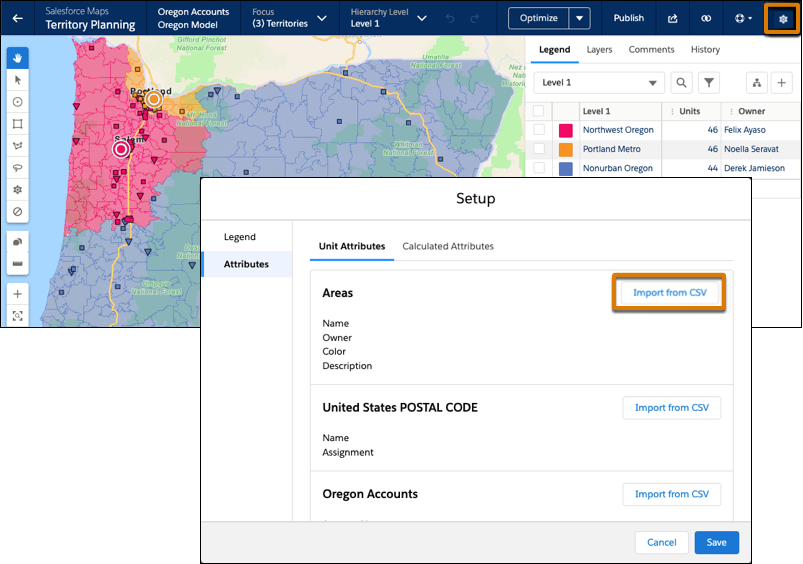
- Save your changes.
-
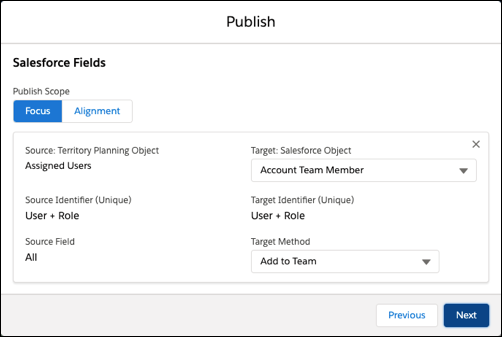
To publish assignments to accounts in Salesforce, select the scope for what you’re
publishing. Add the object Assigned Users, and then select the target
object Account Team Member.
-
Select a target method for publishing team members to accounts, and then click
Next.
To... Set the target method to... Add roles and assigned team members to accounts while preserving established ones Add Overwrite all roles and assigned team members in accounts with the ones that you set in Territory Planning Overwrite Replace assigned team members using the role assignments that you set in Territory Planning Replace -
Click Publish.
Team assignments appear on accounts within the alignment or focus that you published.