Help your sales team follow changes to alignments in Territory Planning, and protect your hard work from accidental data changes. Create a snapshot of an alignment’s current territory model and unit assignments, and review a history of changes that other users have made. A snapshot provides a checkpoint or backup when you make significant changes to an alignment. You can restore the alignment to its configuration at the time of the snapshot. For example, if you take a snapshot and then delete a territory, restoring the snapshot also restores the territory.
Required Editions
| Available in: both Salesforce Classic (not available in all orgs) and Lightning Experience |
| Available in: Professional, Enterprise, Performance, Unlimited, and Developer Editions with Web Services API enabled |
| User Permissions Needed |
| To create and restore snapshots: |
Sales Planning Ops Analyst permission set
AND
Query for Datapipelines User for Sales Planning permission set
AND
SF Maps Territory Planning for Sales Planning permission set
|
First, review these important considerations for snapshots.
- Snapshots apply to the alignment level.
- After you create a snapshot, it remains available for restoration for 90 days.
- Only users with access to the alignment can create or restore a snapshot. Users with access to the area, but not the alignment, can’t create or restore snapshots.
- Before you restore a snapshot, consider taking a new snapshot. You can’t undo a snapshot’s restoration.
- You can’t restore snapshots from the Home page.
- Snapshots can’t be restored if the boundary layer has been removed from the alignment.
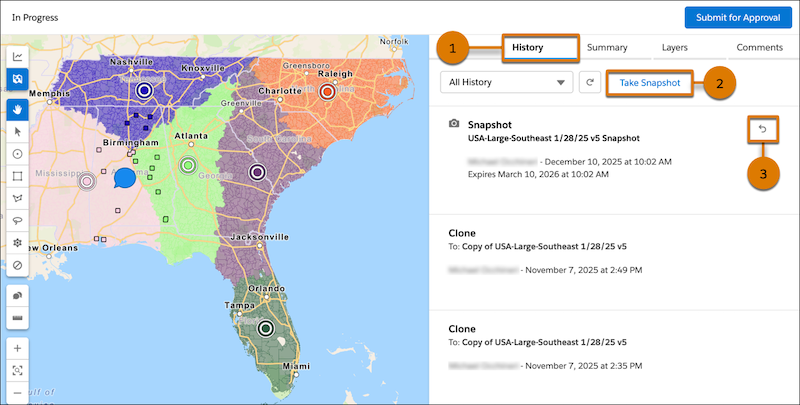
Create snapshots, restore snapshots, and view other historical activity on the alignment from the History tab.
-
With an alignment open in Territory Planning, click the History tab (1).
-
Click Take Snapshot (2)
-
Enter a name and description, which is visible for the snapshot on the History tab, and save your changes.
-
To restore a snapshot later, click the arrow icon (3) on the snapshot on the History tab.
The History tab on an alignment tracks these changes that your sales team makes to the alignment. You can filter by different types of activity, but you can’t turn off or search history.
- Creating or deleting a territory
- Optimizing the alignment
- Estimating travel time
- Planning scenarios
- Publishing the alignment
- Changes in ownership
- Changes in sharing
- Cloning the alignment to or from
- Importing the alignment from a .csv file
- Creating, editing, or deleting a calculated attribute
- Restoring a snapshot
- Creating, editing, deleting, or running assignment rules
- Approval changes
- Locking and unlocking units