Maximize your company’s unique products and services when you incorporate attributes
into unit formulas in Territory Planning. Analyze territories using metrics that, for example,
combine and weight fields so you can prioritize sales of one product over another. Then use those
numbers to inform your sales plan and assign accounts to territories.
Required Editions
| Available in: both Salesforce Classic (not available in all orgs) and Lightning Experience |
| Available in: Professional, Enterprise, Performance, Unlimited, and Developer Editions with Web Services API enabled |
| User Permissions Needed |
| To modify alignments: |
Sales Planning Ops Analyst permission set
AND
Query for Datapipelines User for Sales Planning permission set
AND
SF Maps Territory Planning for Sales Planning permission set
|
-
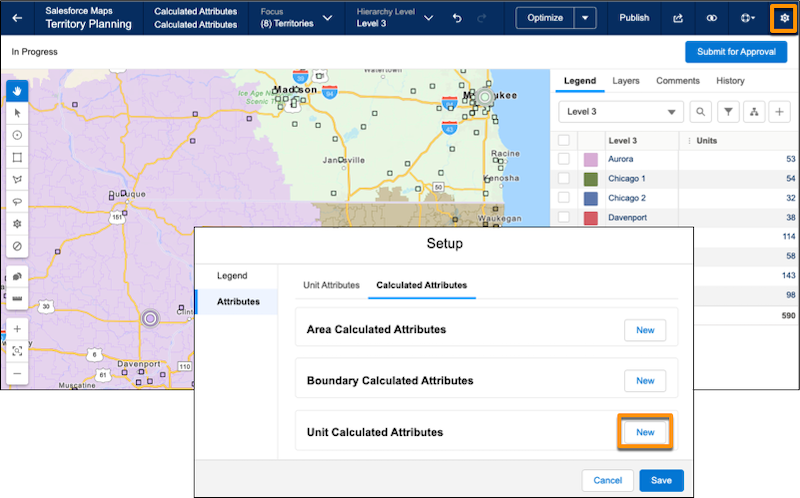
Open an alignment and set the focus.
-
In Settings, select .
-
Click New next to the unit level.
-
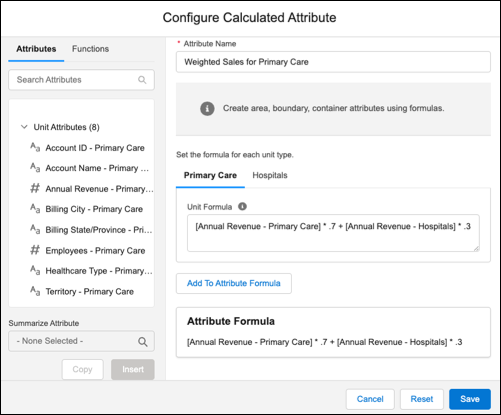
Name your attribute.
-
Use the Attributes and Functions tabs to start building your formula. To add an aggregated
attribute, select a value in Summarize Attribute. The value represents the aggregate for that
attribute in the alignment. For example, selecting MIN for annual revenue references the
minimum value for annual revenue in the alignment.
This example combines and weights annual revenue from primary care locations and
hospitals. A medical equipment company has high revenue from successful hospital sales. The
company wants reps to spend more time at primary care locations. So, to prioritize primary care
sales over hospital sales, the formula weights primary care sales higher. Then, when you take
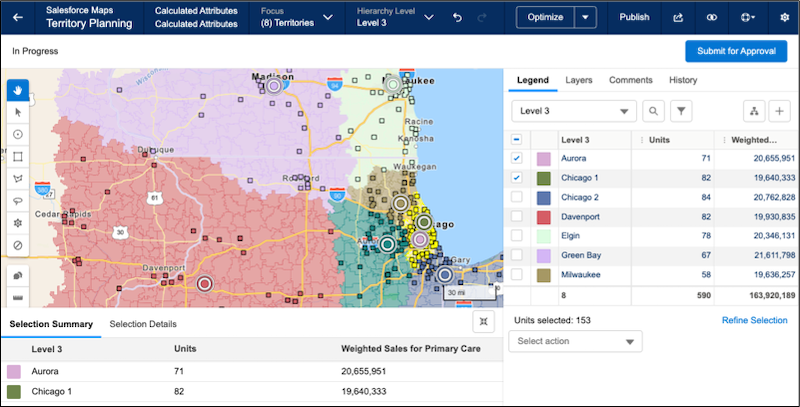
the total of the calculated attributes by territory, territories with higher primary care sales
rank better.
-
Click Add to Attribute Formula.
-
Save the formula.
-
Add columns for the calculated attribute to the legend.
-
Optimize the alignment based on the calculated attribute.