Build a territory model from the top down so that sales and service teams work toward
meeting leadership targets for each top-level area in Territory Planning. For example, create an
alignment that includes regions at the top. Then let each region owner branch into smaller areas,
such as districts, states, and postal codes.
Required Editions
| Available in: both Salesforce Classic (not available in all orgs) and Lightning Experience |
| Available in: Professional, Enterprise, Performance, Unlimited, and Developer Editions with Web Services API enabled |
| User Permissions Needed |
| To create alignments: |
SF Maps Territory Planning permission set
OR
SF Maps Territory Planning for Sales Planning permission set (after you purchase Sales Planning)
|
-
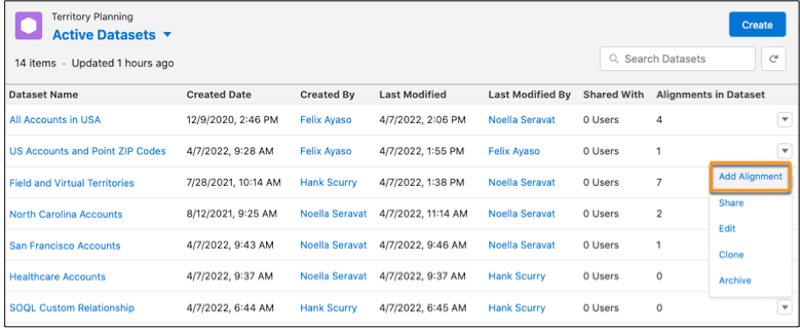
Navigate to the dataset where you want to add an alignment. Then select Add
Alignment.
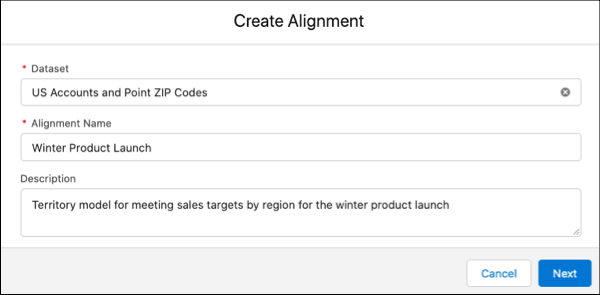
-
Enter a name for the alignment and click Next.
-
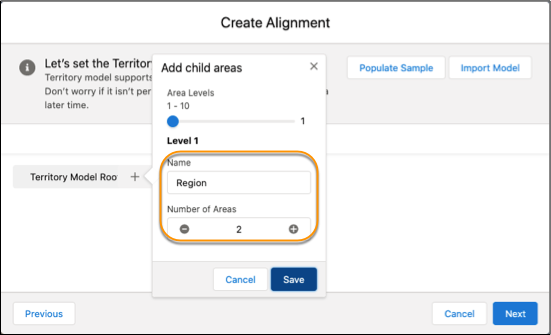
Add the largest areas that represent the top of your territory model such as regions. Then
select the number of top-level areas that you want to plan for. Save your work, then click
Next.
-
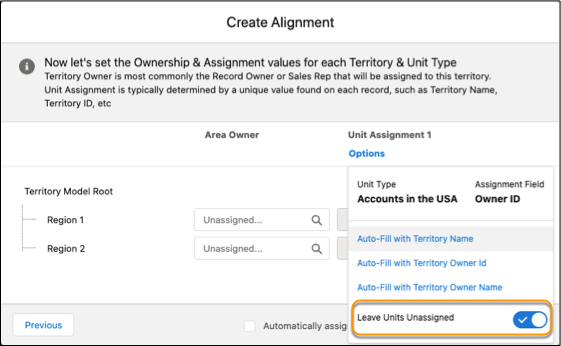
Click Options, then select Leave Units
Unassigned.
-
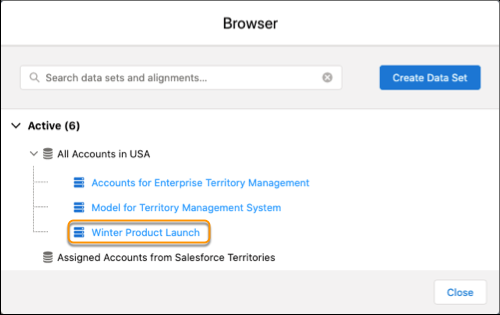
Click Finish.The new alignment
appears in the browser. You can open it and branch top-level areas into smaller areas that help
you support leadership goals.