Identify differences in boundary lines between the alignment you’re working on and
another that you overlay in Territory Planning. Alignment overlays help you plan territories that
complement sales and service efforts among multiple divisions in your company.
Required Editions
| Available in: both Salesforce Classic (not available in all orgs) and Lightning Experience |
| Available in: Professional, Enterprise, Performance, Unlimited, and Developer Editions with Web Services API enabled |
| User Permissions Needed |
| To modify alignments: |
Sales Planning Ops Analyst permission set
AND
Query for Datapipelines User for Sales Planning permission set
AND
SF Maps Territory Planning for Sales Planning permission set
|
-
Open an alignment and set the focus.
-
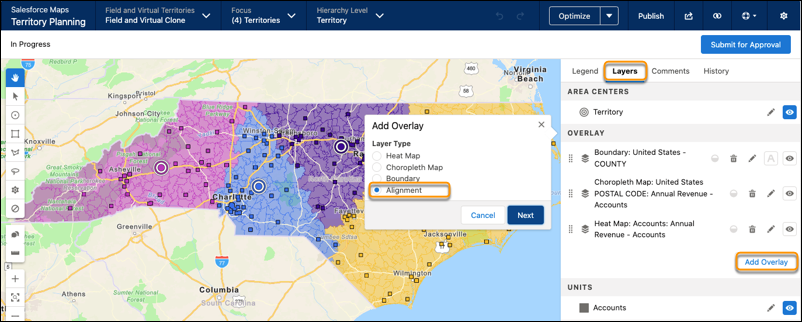
From the Layers tab, click Add Overlay, then select
Alignment. Click Next.
-
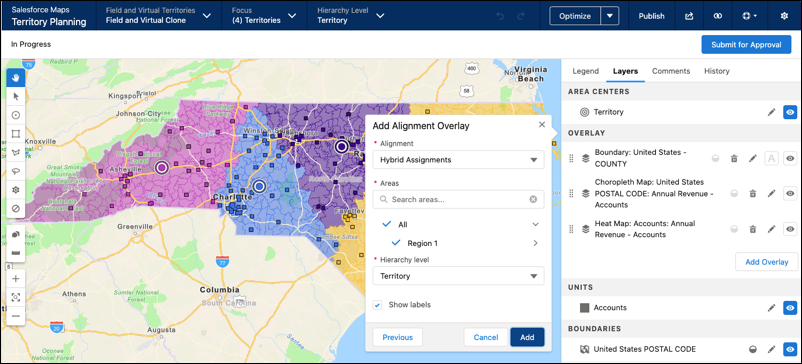
Select the alignment, its areas, and the hierarchy level that you want to overlay on the
map.
-
Click Add.
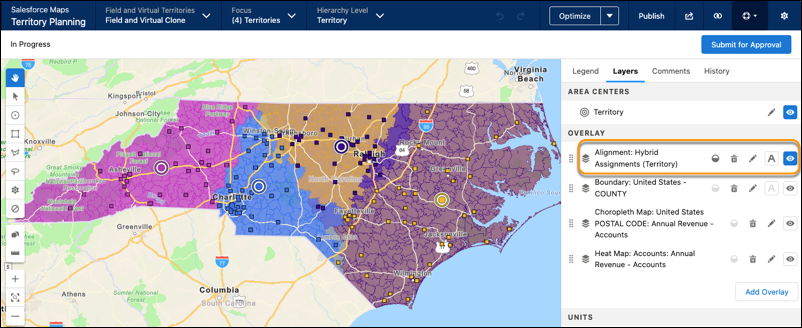
The alignment overlay appears on the map. Settings let you adjust opacity, as well as
delete, edit, and hide the overlay.