
Plan territories by specifying which Salesforce records to include in datasets by using SOQL queries that you write in Territory Planning.
Required Editions
| Available in: both Salesforce Classic (not available in all orgs) and Lightning Experience |
| Available in: Professional, Enterprise, Performance, Unlimited, and Developer Editions with Web Services API enabled |
| User Permissions Needed | |
|---|---|
| To create datasets in Territory Planning: |
Sales Planning Ops Analyst permission set AND Query for Datapipelines User for Sales Planning permission set AND SF Maps Territory Planning for Sales Planning permission set |
-
To include high volumes of data into your datasets, turn on Bulk API. That way you reduce
the likelihood of encountering Salesforce governor limits and speed up the loading process for
alignments. Otherwise, skip to Step 2.
From Setup, in the Quick Find box, enter Installed Packages, and then select Installed Packages. Next to the Salesforce Maps package, click Configure. Under Territory Planning, select Data Management, and then select Bulk API.
Even with Bulk API turned on, Territory Planning validates SOQL queries using Apex.
-
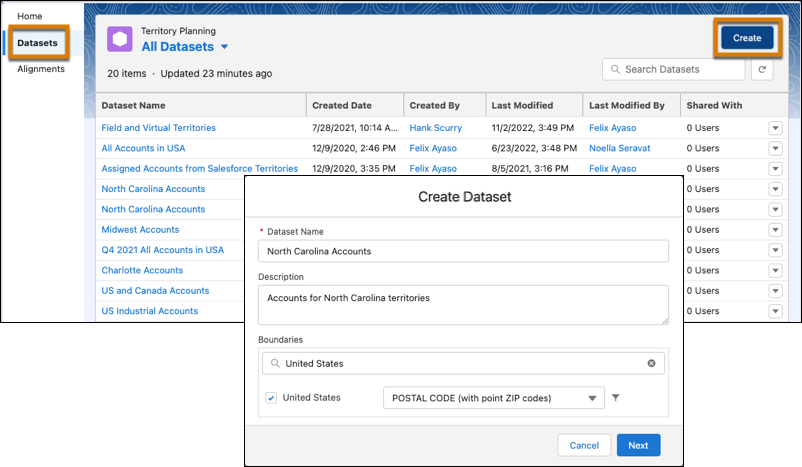
In Territory Planning, click Datasets, then click
Create. Specify whether you want to plan territories with live or
copied data. Enter a name for the dataset and click Next.
-
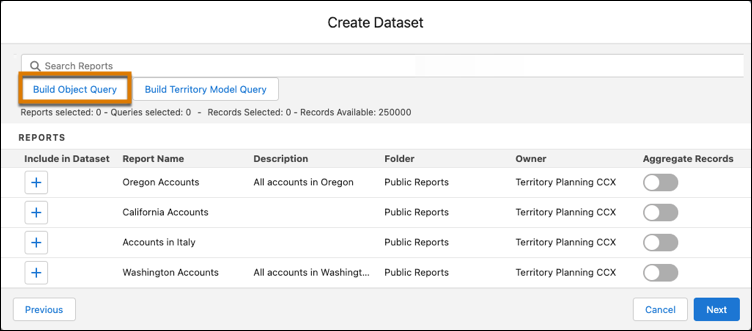
Click Build Object Query.
- Give your query a name, then select an object.
-
Select the fields that you want to add or modify. To add field filters, select only the
filters that include unencrypted fields. Avoid adding filters that include encrypted fields,
such as those encrypted with Shield Platform Encryption.
You can adjust the query directly. For example, use dot notation to pull fields from objects that the base object looks up to.
SELECT ID, NAME, ANNUALREVENUE, BILLINGLATITUDE, BILLINGLONGITUDE, OWNER.NAME FROM ACCOUNTTo join data from one object to another, specify custom relationships. For example, you plan territories for accounts and you want to relate custom territory information, such as territory IDs and names, to them.
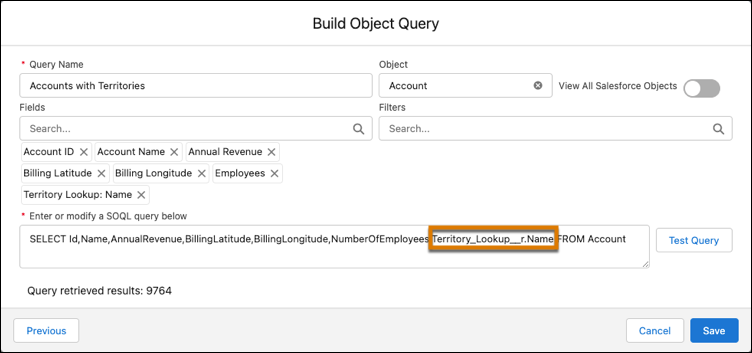
- Test your query, then save your work.
-
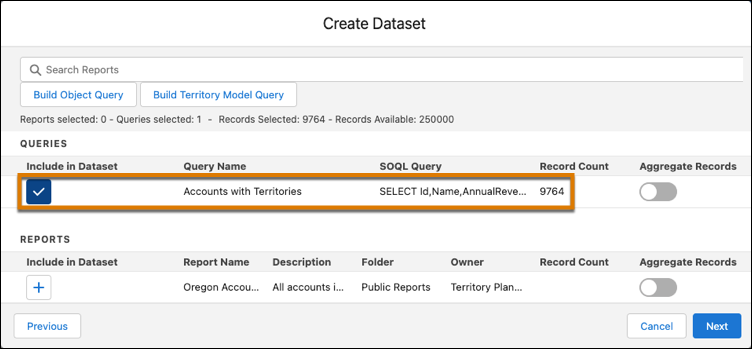
Include the query that you created. Click Next.
-
Select a unit assignment field such as Owner ID. For more field options, turn on
Import Object Fields.
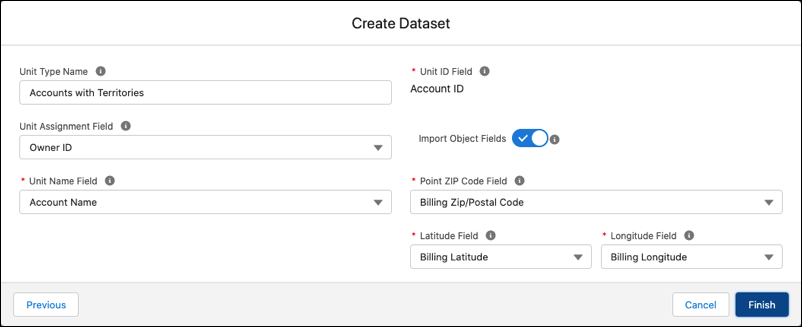
- Click Finish.