
Plan territories by specifying which Salesforce records to include in Territory Planning datasets. For your data sources, you select from reports that you’ve run from your custom report types.
Required Editions
| Available in: both Salesforce Classic (not available in all orgs) and Lightning Experience |
| Available in: Professional, Enterprise, Performance, Unlimited, and Developer Editions with Web Services API enabled |
| User Permissions Needed | |
|---|---|
| To create datasets in Territory Planning: |
Sales Planning Ops Analyst permission set AND Query for Datapipelines User for Sales Planning permission set AND SF Maps Territory Planning for Sales Planning permission set |
-
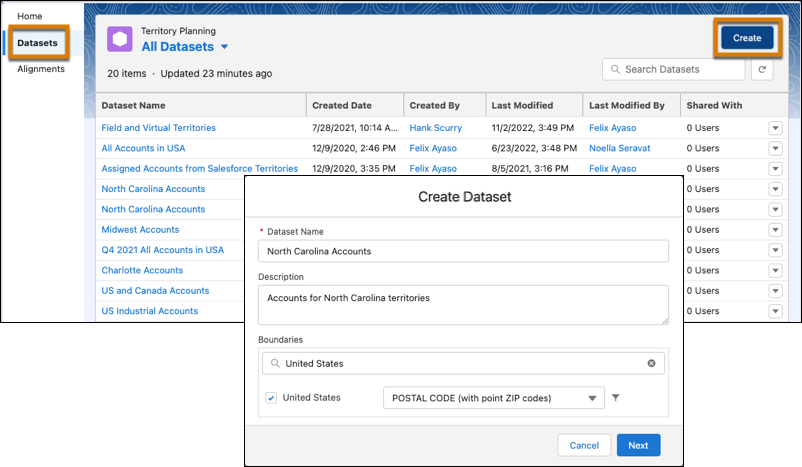
Click Datasets, then click Create. Specify
whether you want to plan territories with live or copied data. Enter a name for the dataset and
click Next.
-
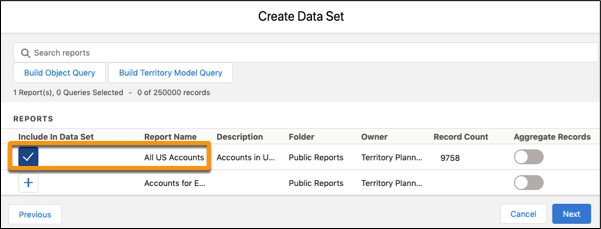
Select the reports that you want to include. If the reports collectively include more than
the 250,000 record allocation for each dataset, aggregate records for any selected reports.
Then click Next.
-
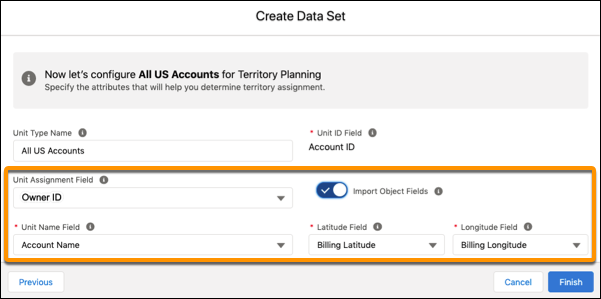
If you don’t see the options you need for unit assignment, unit name, latitude, or
longitude, turn on Import Object Fields. Confirm or select the field
options that you want. For example, select Owner ID for the unit
assignment field, and Account Name for the unit name field.
-
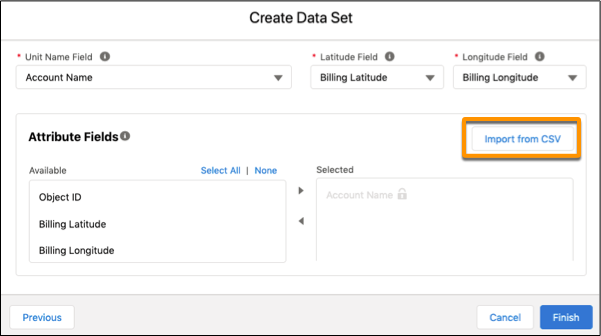
To supplement your data with attributes from external sources in CSV files, click
Import from CSV, then add the CSV files that you want.
- Click Finish.