
Populate Salesforce fields with updated territory data from Territory Planning. Most commonly, you update Salesforce fields that correspond with the records you import for your datasets.
Required Editions
| Available in: both Salesforce Classic (not available in all orgs) and Lightning Experience |
| Available in: Professional, Enterprise, Performance, Unlimited, and Developer Editions with Web Services API enabled |
| User Permissions Needed | |
|---|---|
| To publish alignments: |
Sales Planning Ops Analyst permission set AND Query for Datapipelines User for Sales Planning permission set AND SF Maps Territory Planning for Sales Planning permission set |
For example, you create a dataset that includes Salesforce accounts. You then optimize focuses in Territory Planning, which updates account owners for many of your accounts. So you publish those updates to your account records in Salesforce.
-
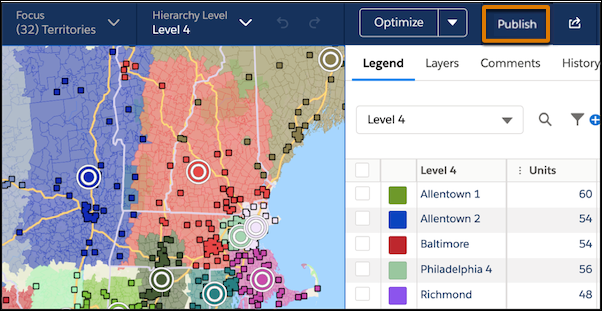
From the map, click Publish.
-
Select Salesforce Fields, and click
Next.
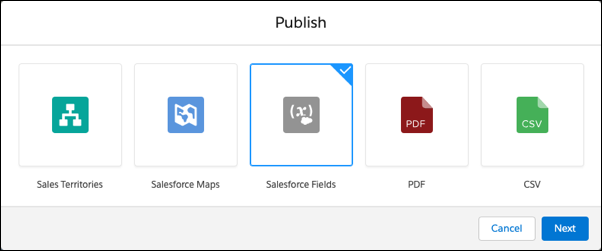
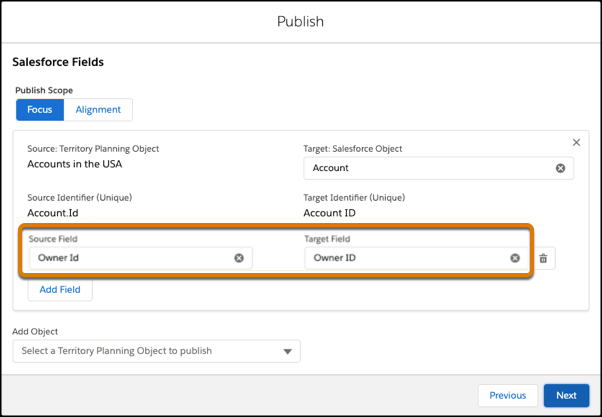
- Set the publish scope to Focus. Under Add Object, select the unit that you want to publish, such as Accounts in the USA.
- Select the target Salesforce object, such as Account.
-
Select the source field that you want to publish and its corresponding Salesforce field
that you want to update.
For example, you want the owner identifications for accounts in Salesforce to reflect the updated owner identifications in Territory Planning, so you select Owner Id for the source and target fields.
- Click Next. Review your changes, then publish them. If any data fails to publish, download the log file, fix the errors, and publish again.