
Create shape layers that include territory model details from the alignments you create in Territory Planning.
Required Editions
| Available in: both Salesforce Classic (not available in all orgs) and Lightning Experience |
| Available in: Professional, Enterprise, Performance, Unlimited, and Developer Editions with Web Services API enabled |
| User Permissions Needed | |
|---|---|
| To publish alignments: |
Sales Planning Ops Analyst permission set AND Query for Datapipelines User for Sales Planning permission set AND SF Maps Territory Planning for Sales Planning permission set |
Salesforce Maps works with providers, such as the US government, which supply data for your shape layers. Periodically, these providers update their data, which means that your shape layers reflect those updates whereas your previously created datasets in Territory Planning don’t. Publishing alignments based on datasets that contain legacy boundaries can result in shape layers appearing in a way you don’t expect. See Shape Layers and Data Source Updates.
-
From the map, click Publish.
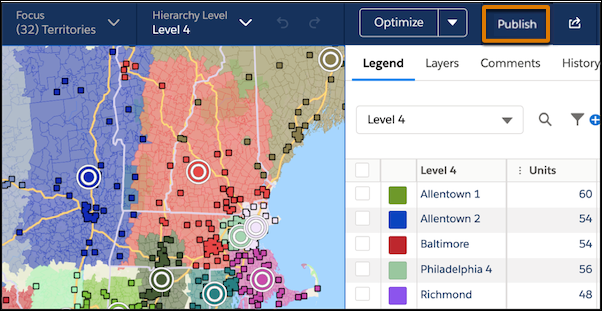
-
Select Salesforce Maps, and click Next.
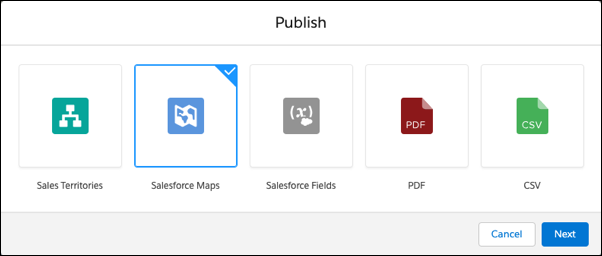
-
Select the scope of what to publish.
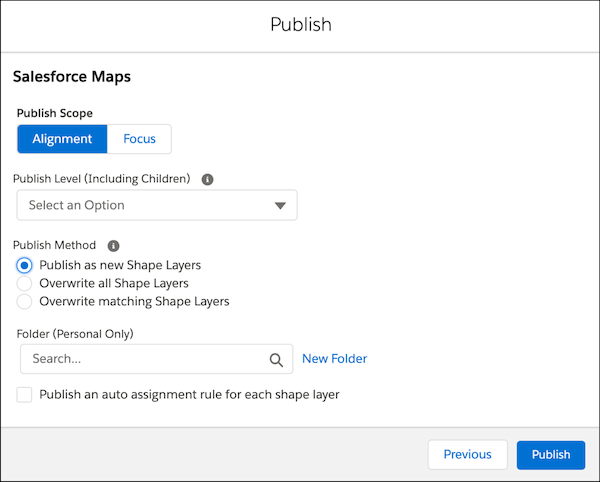
If you’re publishing assignment rules for each shape layer, confirm that all areas within the alignment or focus include area owners.For Example, to Publish... Select... The entire alignment when you create hierarchies for the first time or transition to a new planning model Alignment Your current focus when you change one area and want to publish those changes Focus - Select the level to publish. Children of the selected level are published along with the level. For example, your hierarchy is Region | District | Territory. When you publish a district, you also publish its territories.
- Select the method you want to use to publish.
- Select the folder where you want to publish the alignment as a shape layer. Each territory is created as it’s own shape in Salesforce Maps.
- To create an auto assignment rule for every territory in your publish scope, select Publish an auto assignment rule for each shape layer.
- Click Publish.