Build territory models from the top or from a sample model in Territory Planning. Set up regions, districts, and territories that reflect the structure of your sales and service areas.
Required Editions
| Available in: both Salesforce Classic (not available in all orgs) and Lightning Experience |
| Available in: Professional, Enterprise, Performance, Unlimited, and Developer Editions with Web Services API enabled |
| User Permissions Needed | |
|---|---|
| To create alignments: |
Sales Planning Ops Analyst permission set AND Query for Datapipelines User for Sales Planning permission set AND SF Maps Territory Planning for Sales Planning permission set |
-
Click Alignments, click Create, and specify options in the Create Alignment window.
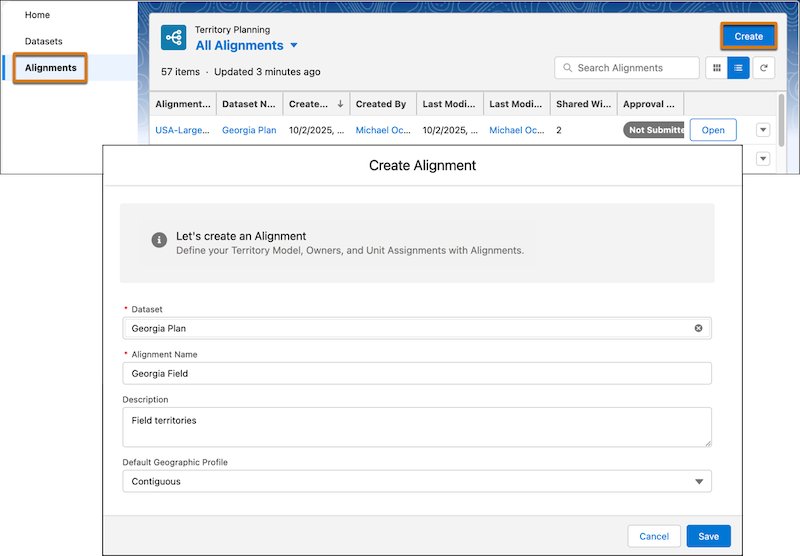
- Select a dataset.
- Enter a name for the alignment.
-
Select a default geographic profile.
When you create an alignment, the default geographic profile that you select at the alignment level updates its subsequently created areas. When you edit an alignment, the profile you select doesn’t update the alignment’s areas.
-
Save your changes.
- If you selected live data, the Create Alignment window closes and the alignment builder opens. To continue, click the Legend tab, and click Edit territory model (
 ).
). - If you selected copied data, click Next and continue working in the Create Alignment window.
- If you selected live data, the Create Alignment window closes and the alignment builder opens. To continue, click the Legend tab, and click Edit territory model (
-
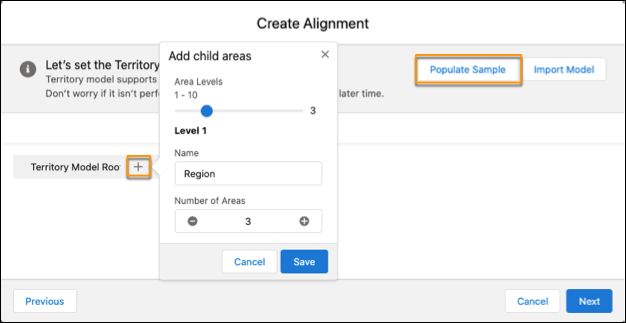
Set the area levels that you want for the model’s root structure, or add a sample structure
that you tailor for your company’s requirements.
-
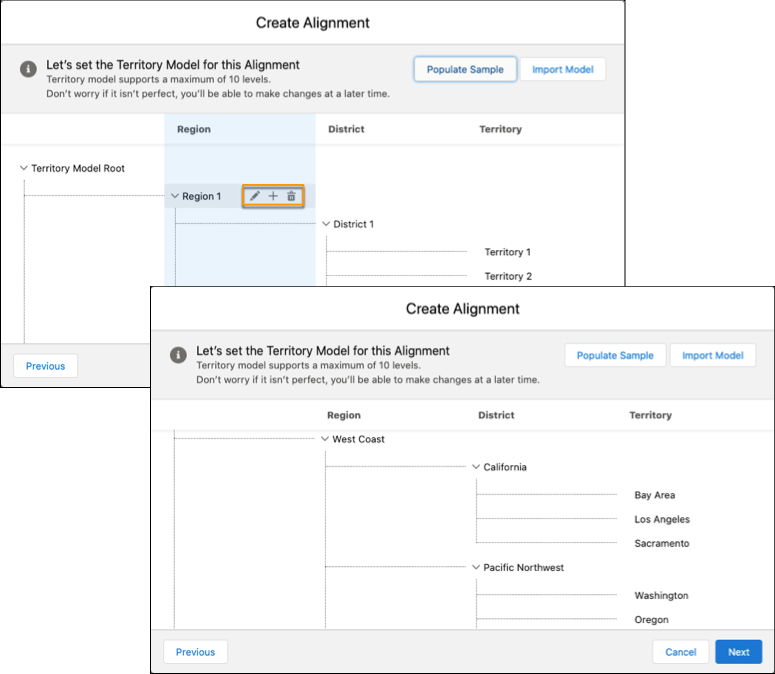
Hover over each area and rename them so that they reflect your sales and service areas. Add
or remove areas so that they reflect your sales and service structure.
-
Click Next.
- If you selected live data, review the alignment updates and save your changes.
- If you selected copied data, continue to the final step.
-
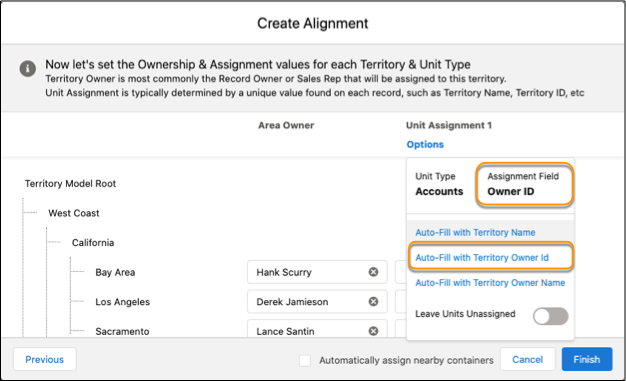
(Copied data only) Add area owners, then select an option for unit assignments
that corresponds with the assignment field from the dataset. Click
Finish.