Import a territory model from Sales Territories into Territory Planning and configure it as an alignment. Adjust area names, assignment rules, and boundaries to match your current sales structure.
Required Editions
Before you import a territory model, decide whether to use live data or copied data. Live data reflects real-time changes from your Salesforce org, while copied data creates a snapshot you can modify independently. Your choice determines which configuration options are available during import.
| Available in: both Salesforce Classic (not available in all orgs) and Lightning Experience |
| Available in: Professional, Enterprise, Performance, Unlimited, and Developer Editions with Web Services API enabled |
| User Permissions Needed | |
|---|---|
| To create alignments: |
Sales Planning Ops Analyst permission set AND Query for Datapipelines User for Sales Planning permission set AND SF Maps Territory Planning for Sales Planning permission set |
-
In Territory Planning, click Alignments, then click Create.
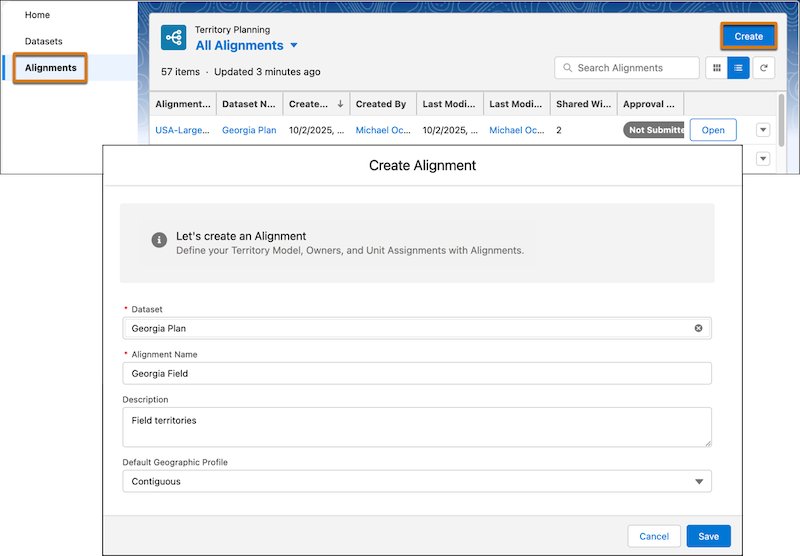
- Select a dataset.
- Enter a name for the alignment.
-
Select a default geographic profile.
When you create an alignment, the default geographic profile that you select at the alignment level updates its subsequently created areas. When you edit an alignment, the profile you select doesn’t update the alignment’s areas.
-
Click Save.
- If you selected live data, the Create Alignment window closes and the alignment builder opens. Click the Legend tab, then click Edit territory model (
 ).
). - If you selected copied data, click Next and continue working in the Create Alignment window.
- If you selected live data, the Create Alignment window closes and the alignment builder opens. Click the Legend tab, then click Edit territory model (
-
Click Import Model, select Salesforce
Territory Model, and click Next. Specify
options in the Import From window.
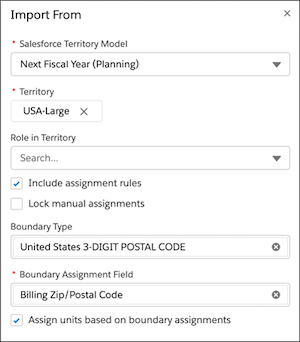
 Note Options in this window depend on your data type. With live data, specify boundaries at the alignment level. With copied data, boundaries are already specified at the dataset level.
- Select the territory model that you want to import from Sales Territories.
- Select a territory that represents the scope of the model that you want to import.
- Optionally, specify a role in territory.
-
To convey assignment rules and units from the model that you’re
importing to the new Territory Planning alignment, turn on
Include assignment rules.
 Important In Sales Territories, rules that reference currency fields include the currency ISO code such as
USD 1,000. When importing these rules into Territory Planning, we’ll save the currency ISO code, but the rule will simply show the numeric value of1000. When that rule is published back to Sales Territories, we’ll recall the currency ISO code and add it to the published rule. Territory Planning evaluates currency fields using the numeric values it retrieves without accounting for the record’s currency or converting between record, user, and corporate currencies. -
To convey manual assignments from the model that you’re importing to the
new Territory Planning alignment, turn on lock manual
assignment.
All units, including unassigned units, must be in focus for manual assignments to import correctly.
- (Live data only) If you included assignment rules, specify an optional Boundary Type and required Boundary Assignment Field, which lets you assign boundaries to areas according to the assignment rules.
-
(Live data only) If you specified a Boundary Type, turn on
Assign units based on boundary assignments to
assign units to the same areas as the corresponding boundary
units.
This selection applies only to the units with boundaries that you're importing currently.
- (Copied data only) To assign boundaries to areas according to the imported assignment rules, select a Boundary Assignment Field.
- Click Import.
-
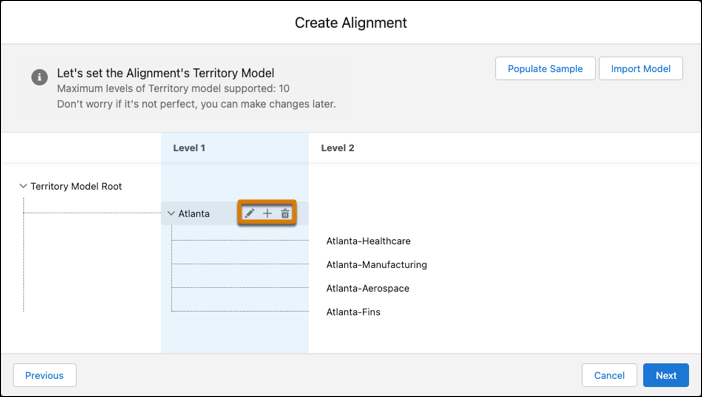
Rename areas to match your current sales structure. Hover over an area name to edit it. Add or remove areas as needed.
-
Click Next.
- If you selected live data, review the alignment updates and save your changes.
- If you selected copied data, continue to the final step.
-
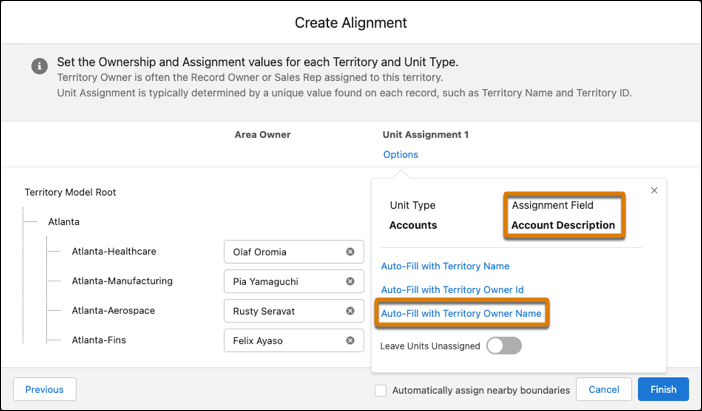
(Copied data only) Add area owners, then select a unit assignment option
that matches the assignment field from your dataset. Click
Finish.