
Enhance the information in live alignments that are managed in CRM Analytics and created using segment data sources in Territory Planning. Set up attribute fields in a CRM Analytics connection and recipe, then include those attributes in your alignment.
Required Editions
| Available in: both Salesforce Classic (not available in all orgs) and Lightning Experience |
| Available in: Professional, Enterprise, Performance, Unlimited, and Developer Editions with Web Services API enabled |
| User Permissions Needed | |
|---|---|
| To manage and create a recipe: |
Edit CRM Analytics Dataflows OR Edit Dataset Recipes |
| To add attributes to alignments: |
Sales Planning Ops Analyst permission set AND Query for Datapipelines User for Sales Planning permission set AND SF Maps Territory Planning for Sales Planning permission set |
Manage the Connection and Recipe in CRM Analytics
To get started, include the attribute fields in a CRM Analytics data connection and recipe.

Note For details about setting up a CRM Analytics data connection and recipe for Sales Planning, see Create Datasets for Sales Planning and Transform and Enrich Data for Sales Planning.
- From the App Launcher, find and select Data Manager.
-
Modify a connection to include the attribute fields.
- Select Connections.
- Select the object that specifies the fields that you want to include as attributes.
- Select the fields to include, and save your changes.
- Sync the connection.
-
Modify a recipe to include the attribute fields.
- Select Recipes.
- Open the recipe that includes your dataset.
-
Select the object node, then click Change columns.
For example, if your recipe is based on accounts, click the Account node.
- Select the fields that you want to include as attributes and click Next.
- Verify that the fields that you added appear in the Preview pane, and then run the recipe.
- Sync the connection again.
Add Attributes to the Sales Plan
After the CRM Analytics recipe runs, add the attribute fields to your sales plan.
- Return to Sales Planning, and click the Sales Plan Settings tab.
- Select Data Sources.>
- Open the data source that’s used with your CRM Analytics connection and recipe.
- From the Available list, select the attribute fields that you added in CRM Analytics and move them to the Selected list.
- Save your changes.
Add Attributes in Territory Planning
Finally, add the attribute fields to the alignment in Territory Planning.
- Open the alignment that you want to modify.
- In alignment builder, click the gear icon to open the settings window.
-
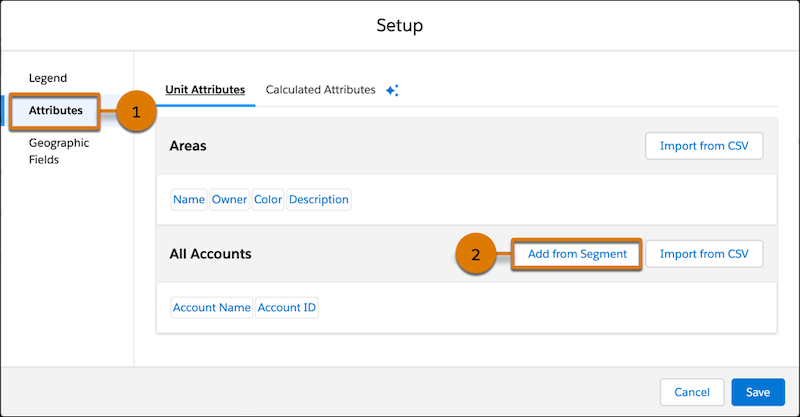
Select Attributes (1) and click Add from Segment (2).
- Select the fields that correspond to the attributes that you added, and save your changes.