
If teams in Salesforce Spiff share plans or if you want to add teams to the same quotas, turn on Automation for teams. Users are assigned to plans and quotas automatically when they're assigned to a team.
Required Editions
| Available in: both Salesforce Classic (not available in all orgs) and Lightning Experience |
| Available in: Enterprise, Unlimited, and Developer Editions |
| Available for an additional cost in: Professional Edition with Web Services API Enabled |
| User Permissions Needed | |
|---|---|
| To turn on team automation: |
A Spiff user role with these permissions turned on.
|
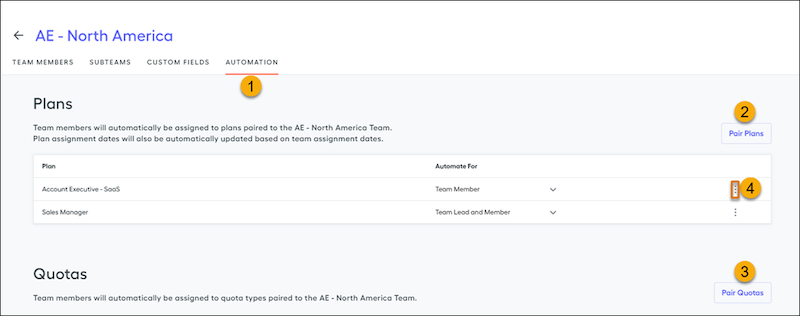
- Select a team from the Teams page, and click Automation (1).
-
Select Pair Your First Plan or Pair
Plans (2) to choose the plan you want the team to be paired
with. This allows you to automate the addition of team members and the team
leads, team members only, or team leads only. Save your selection.
If there are users already assigned to the team, you’re prompted to apply the plan assignment to these users. If users on the team have already been assigned to the paired plan at a previous date, choose Don't Apply. Otherwise, duplication can occur.Once you add team members with effective start dates to the team, these team members are reflected on the plan effective dates automatically. Any changes made to plan effective dates on the Plans page reset to the team effective dates during the nightly sync.
-
In the Quotas section in Automation, click Pair Quotas
(3) and select whether paired quotas apply to team members or team leads.
Only the quota assignment is automated. Quota values must be inputted for each user manually.
- To remove paired plans or quotas, hover over the three dots on the far right of the visible plan or quota and select Remove (4).