
Your organization can have a complex hierarchy involving multiple team levels. With the team hierarchy visualization, you can view your organization's teams and team structure in a way that captures the intricacies of various parent teams with their associated subteams, and even the subteams within subteams. A team is a group of members and team leads. A hierarchy is a group of related teams identified by its top-level team. Use teams and hierarchies to control who can view rep statements and to support commission rollups.
Required Editions
| Available in: both Salesforce Classic (not available in all orgs) and Lightning Experience |
| Available in: Enterprise, Unlimited, and Developer Editions |
| Available for an additional cost in: Professional Edition with Web Services API Enabled |
Teams Versus Hierarchies
In Salesforce Spiff, a team is a single group that can include team members and team leads. A hierarchy is a group of teams that is identified by its top-level team. The hierarchy includes that top-level team and all of its descendant subteams. For example, if AMER is the parent team, USA is a child team, and California is a grandchild team, Spiff identifies that structure as the AMER hierarchy.
Parent Teams and Subteams
Build a hierarchy by assigning teams as subteams of a parent team. You can nest subteams across multiple levels. Avoid assigning a team as a subteam of itself, which creates a circular reference that isn’t compatible with team hierarchies. Also, a team can’t be both a parent and a subteam of another team.
Statement Access Across Teams
Hierarchies help you give access to records, such as statements, across multiple teams. For example, a user needs to access statements for users on multiple teams. You can add them as a team lead to every team. Or, you can create a team where all the direct reports they need to access are assigned as team members. Both strategies, however, are time-consuming and difficult to maintain. Instead, assign the user as a team lead on a parent team and add other teams as subteams. The team lead can see the statements of any members of those teams.

Rollups
Teams can help you manage rollups (also called overrides) where a team lead, manager, or executive receives credit for the team’s achievements, such as revenue, profit, or number of deals closed. For example, maybe a VP or CSO earns commission based on the sum of revenue that the team closed. The team’s revenue rolls up to the executive.
There are a couple of ways to manage rollups with teams in Spiff.
- Assign the rollup to plans in Designer. To use this method, turn on rollups in Admin Settings. This method requires additional logic for the corresponding plan in Designer.
- Use the Guided Rollup Filter Builder in the Data section of Designer. This filter uses the team hierarchies to create a rollup of team deals. After you create a rollup filter, you can reference it in your plan calculations.
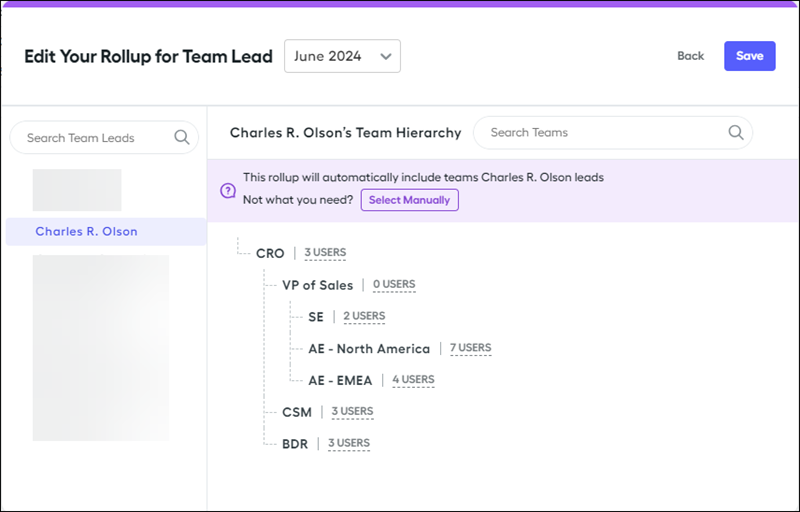
Teams Page Hierarchy Views
To view a team’s hierarchy, select a team from the Teams page. Spiff shows that team as the top-level team of the hierarchy, along with its descendant subteams.
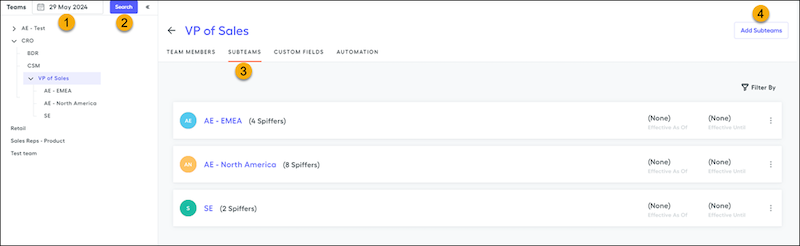
The Teams page provides these options.
- Show team hierarchies for a specific effective date (1). Each selected top-level team has its own hierarchy as of that date.
- Search by team name, lead, or member (2).
- For a selected team in the left panel, manage team leads, subteams, custom fields, or automation options (3).
- Create subteams (4).