
To make sure that reps stay focused on the most important data, you as an admin can change the display of the Payout Rules section of the rep’s statement. Adjust the displayed metrics, the order in which metrics appear, and the columns in the Obligations table.
Required Editions
| Available in: both Salesforce Classic (not available in all orgs) and Lightning Experience |
| Available in: Enterprise, Unlimited, and Developer Editions |
| Available for an additional cost in: Professional Edition with Web Services API Enabled |
| User Permissions Needed | |
|---|---|
| To edit a statement: |
A Spiff user role with these permissions turned on.
|
Any changes to a rep statement apply to all reps in the same plan.
-
Open the statement you want to adjust and click Edit.
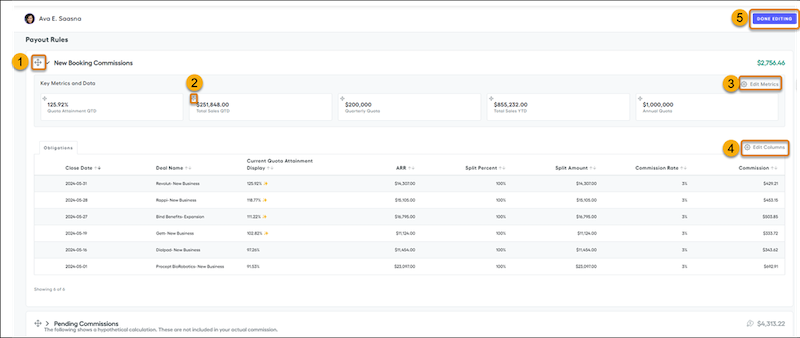
- To move a payout rule down or up the list, use the payout rule handle (1).
-
To adjust the payout rule display, expand the payout rule.
- To change the display order of a metric, use the metric handle (2).
- To change the displayed metrics, click Edit Metrics (3), turn on the metrics you want to show, and click Apply.
- To change the columns in the Obligations table of the payout rule, click Edit Columns (4) and turn on the columns you want to show. You can also drag columns in the dialog box to change the column order. Click Apply.
- To save your changes, click Done Editing (5).
- Recalculate the statement and refresh your browser.