
If you're updating only commission data for a statement and want to apply the change to your entire organization, overwrite the statement record within Data Sources.
Required Editions
| Available in: both Salesforce Classic (not available in all orgs) and Lightning Experience |
| Available in: Enterprise, Unlimited, and Developer Editions |
| Available for an additional cost in: Professional Edition with Web Services API Enabled |
| User Permissions Needed | |
|---|---|
| To overwrite statement data: |
A Spiff user role with these permissions turned on.
|
Overwrites made inside Salesforce Spiff do not write back to your CRM.
- Click Data Sources.
-
Find the record you want to overwrite, hover over the row or field, and double-click the Overwrite column.
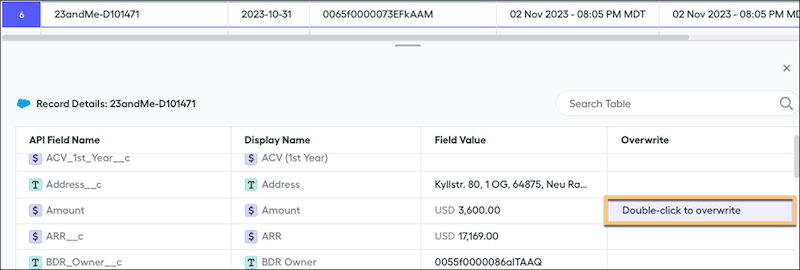
-
Enter or select the new value. To commit the changes, click out of the Overwrite text box.
When overwriting a currency value, enter the numeric value without the currency code.
-
Confirm the ovewrite.
The overwrite entry appears in the Overwrite field, with an indicator (1).
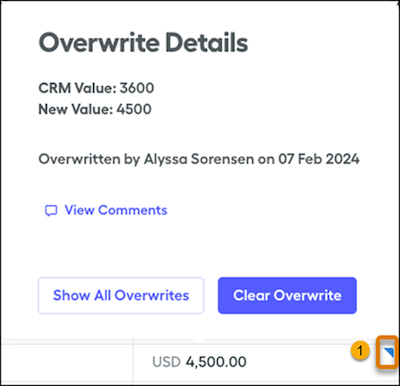
- To view additional details, hover over the overwrite. You can also clear the overwrite.
If you upload or sync a value after you add an overwrite, the overwrite supersedes the new value. The value on the underlying record is updated behind the scenes, but for calculations the value is ignored in favor of the overwrite value. To resume using the true field value in calculations, clear the overwrite.