Data that changes over time causes data drift. For example, an opportunity that changed ownership as it moves through different stages can show up in a rep's data filter in Q1 but not in Q2. Salesforce Spiff administrators sometimes need to know the commission value from a previous period, such as how much a rep earned on new deals three months ago. Because of data drift, that value can be different now than it was when the commission statement was first calculated. To overcome this issue and look up past commission statement and payout rule values, use the amounts_from function.
Required Editions
| Available in: both Salesforce Classic (not available in all orgs) and Lightning
Experience |
| Available in: Enterprise, Unlimited, and Developer
Editions |
| Available for an additional cost in: Professional Edition with Web
Services API Enabled |
| User Permissions Needed |
| To create worksheet calculations: |
A Spiff user role with this permission turned on.
Designer Configuration: Manage
|
For example, to accurately calculate Year-to-Date (YTD) totals for Closed ARR, use the amounts_from function to combine current month live data with historical data from previous months.
-
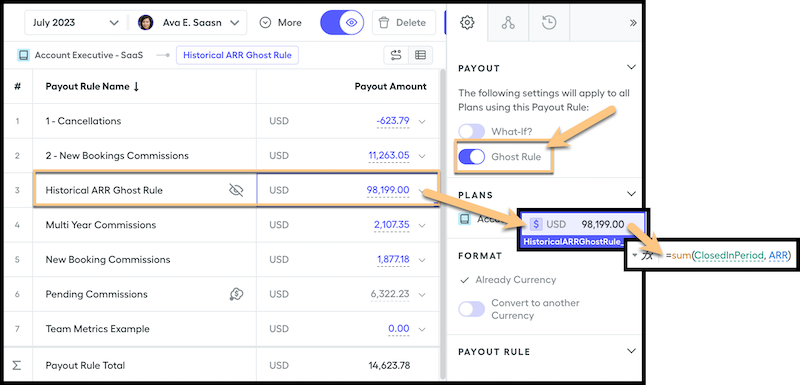
Create a ghost rule to calculate the current period valuesuch. Name the rule Historical ARR Ghost Rule.
Ghost rules are invisible to reps and don't affect commission totals.
-
For the final payout amount, create a worksheet calculation that sums the total ARR for the deals closed in the period.
This payout rule references closed ARR for each period and is unaffected by data drift.
=sum(ClosedInPeriod, ARR)
-
Create the historical values worksheet calculation that sums the amounts for the ghost rule for every period before the current period for the calendar year.
PriorMonthsHistoricalData = amounts_from(BeginningOfYear, EndOfPriorPeriod, “PlanName”, “Historical ARR Ghost Rule”)
The EndOfPriorPeriod date prevents pulling prior year values in the first period. The formula includes every period except the current period so that the current period is still updated as new ARR values are added.
-
Create a YTD calculation by summing the closed ARR from all previous periods in the year and the current monthly total.
YTD_Total = CurrentMonthLiveData + PriorMonthsHistoricalData
CurrentMonthLiveData = sum(ClosedInPeriod!ARR)