
The admin's view of a rep's statement is very similar to what the rep sees. However, the admin's view includes functionalities not available to the rep.
Required Editions
| Available in: both Salesforce Classic (not available in all orgs) and Lightning Experience |
| Available in: Enterprise, Unlimited, and Developer Editions |
| Available for an additional cost in: Professional Edition with Web Services API Enabled |
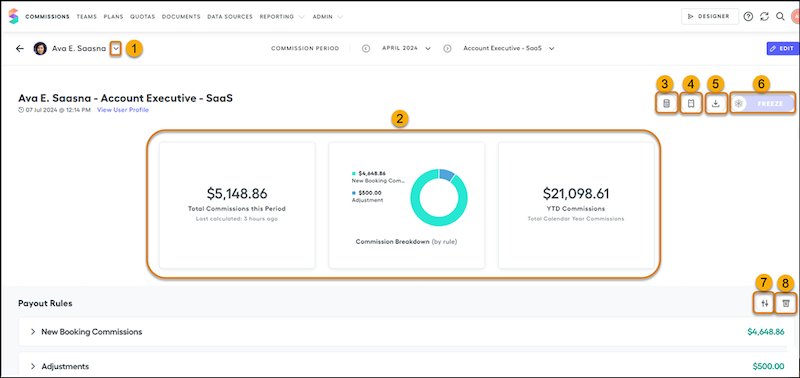
Both the admin's view and the rep's view show the same metrics and data. However, the admin view includes edit, recalculating, freeze, adjustment, and draw functionalities that aren't available for the rep. The Payout Rules section includes ghost rules. See Considerations for Ghost Rules.
In the admin view, you can customize the Payout Rules section. Access a rep statement from the main commission page. To access a different rep statement from a rep statement, use the dropdown (1), and search or scroll for a rep name to go directly to that statement.
The top of a rep statement (2) shows the metrics defined in your company. You can use the default top-level metrics or change them according to your needs. See Add and Edit Standard and Custom Statement Metrics.
Recalculating the Statement
To recalculate the statement, click the Recalculate Statement icon (3). For details, see Recalculating Commission Statements.
Ticket Management
If Ticket Management is turned on, clicking the Open a Ticket icon (4) navigates to the Create a New Ticket window or to an external ticketing application, depending on your company's settings. Any user who has access to the rep's statement, including the rep, an admin, or a team lead, can create a new ticket tied to that statement.
Exporting the Statement
The Export Statement icon (5) exports a summary of the statement. This functionality is also available to the rep. Export all of this rep's statements Year to Date, Last Period, Last Year, or custom date range. To export statement data, use the Export Statement icon in the statement toolbar.
Export is the only way to see full statement data if a statement exceeds the 30 MB size limit and Spiff can no longer render all of the data on the Statement page.
Freezing and Unfreezing the Statement
Clicking the Freeze button (6) on a rep statement page freezes only that rep's statement for the selected period. For additional details, see Freezing and Unfreezing Statements. You can unfreeze an individual statement by clicking Un-Freeze on the rep statement. This action resets any progress made with statement approvals and can result in changes to the commission amounts due to data source or calculation updates if the statement is then recalculated.
Manual Adjustments and Manual Draws
To manually add an adjustment or draw to the statement, click the Create an Adjustment icon (7) or Create a Draw icon (8). For details, see Make Manual Adjustments and Manual Draws in Statements.
Column Layout on Payout Rule Tables
In edit mode, freeze columns to keep them visible while reps scroll, and adjust column widths to match the data in each column. Column layout changes apply to all reps on the plan as the default view. Reps can adjust their own layout during a session, but their changes aren't saved—the layout reverts to the admin-configured default when they return to the statement. See Freeze and Resize Columns on Payout Rule Tables.
Customizations
You customize the order of the rules and displayed data. Any changes to a rep statement apply to all reps in the same plan. You can also change the fields that show for each rule. If you didn't use the field you are adding in your commission logic, the field can appear blank initially. To show the data, recalculate your statement and refresh your page. You can also freeze columns and adjust column widths on payout rule tables to set a consistent default layout for all reps on the plan.