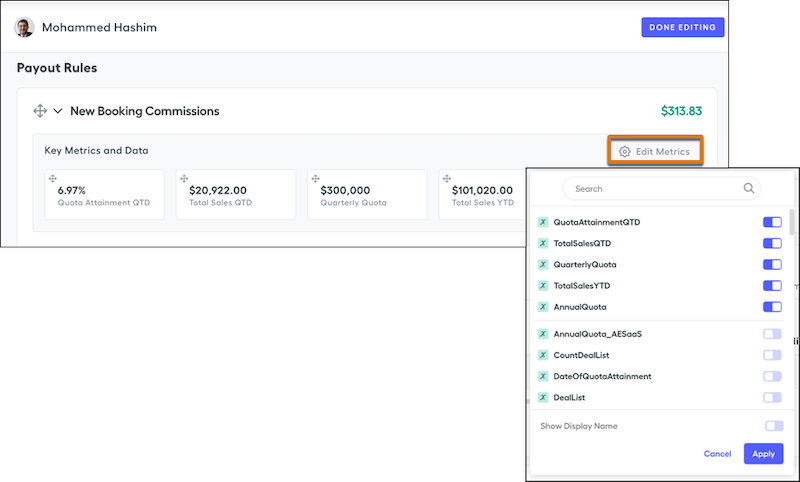
Motivate reps by giving them insight into payout rules. Reps learn what deals to focus on at the end of the month or statement period when they see key metrics and data such as quarterly quota and commission. Changes to rule metrics apply to all statements on the same plan.
Required Editions
| Available in: both Salesforce Classic (not available in all orgs) and Lightning
Experience |
| Available in: Enterprise, Unlimited, and Developer
Editions |
| Available for an additional cost in: Professional Edition with Web
Services API Enabled |
| User Permissions Needed |
| To edit metrics in a statement: |
A Spiff user role with these permissions turned on.
- Statements: Edit
- Statements: Recalculate
|
-
From a rep’s statement, click Edit.
-
Expand a payout rule and click Edit Metrics.
-
Turn on or off rule-specific data points, or search for one to add.
-
Turn on or off Show Display Name.
-
Click Apply.
-
Drag the card to the location you want.
-
Click Done Editing.
-
Recalculate the statement and refresh your browser.
Metrics that weren't used in the commission logic for your plan don’t show any data until you recalculate and refresh. Your statement can take a few minutes to recalculate before you refresh.