
Personalize messages on rep statements that inform, inspire, and engage your team.
Required Editions
| Available in: both Salesforce Classic (not available in all orgs) and Lightning Experience |
| Available in: Enterprise, Unlimited, and Developer Editions |
| Available for an additional cost in: Professional Edition with Web Services API Enabled |
| User Permissions Needed | |
|---|---|
| To add custom text to metric cards: |
A Spiff user role with this permission turned on. Designer Configuration: Manage |
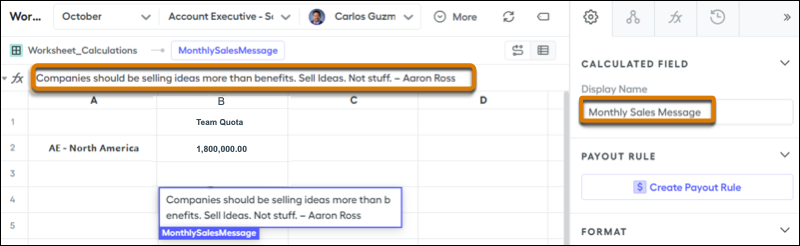
- Create a field that stores the statement message. The statement message field can be added to any worksheet in Designer. Enter the message text in a cell the way you want it to appear on the statement.
-
Rename the field on the worksheet to represent the message for which it’s used. Update the display name and its message label on your statements.
- Exit Designer and open a user’s statement where you want to add the metric tile.
- Click Edit and click Add Tile.
- For Metric Type, select Custom.
- For Field, select the display name.
- For Visualization Type, select Single Value.
-
For Size, leave Regular selected so more characters appear in the message.
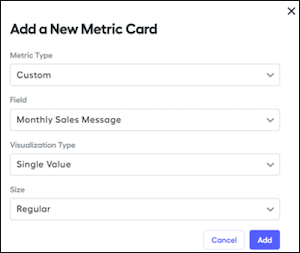
- Click Add.
- Drag the new card onto the statement and click Done Editing.
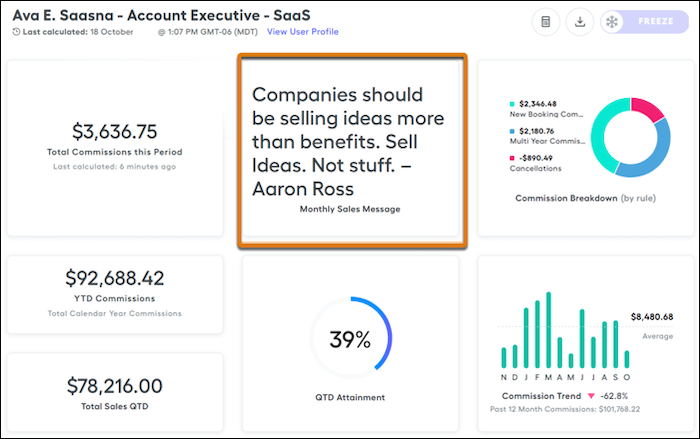
Remember that everyone on the plan has the message on their statement. If you want the message to show up on all reps’ statements, add the metric card to an individual on each plan. To change the message monthly, edit the worksheet field and it automatically updates everyone’s message during the next recalculation cycle.