Along with the default and pre-built metrics, you can add custom metrics to statements. Any calculations that you create in Designer can be used as a metric card.
Required Editions
| Available in: both Salesforce Classic (not available in all orgs) and Lightning Experience |
| Available in: Enterprise, Unlimited, and Developer Editions |
| Available for an additional cost in: Professional Edition with Web Services API Enabled |
| User Permissions Needed | |
|---|---|
| To create a custom metric with quotas: |
A Spiff user role with these permissions turned on.
|
For this example, we’re creating a year to date (YTD) Deal Renewals Attainment statement metric that includes In Year Attainment with deal renewals only.
- In Designer, under Plans, create a folder named Statement Metrics under the plan where you want to add the custom metric.
- In the Statement Metrics folder, add another folder named YTD Deal Renewals Attainment.
-
Create a data filter that returns only deal renewals year to date.
In this example, all of the data that we want to consider is on the Opportunities object, so we build the filter there. Before creating the filter from scratch, check to see if there are any existing filters that can be used. Make sure to filter by the specific rep, by deals that are closed, won, and renewed, and by the year selected.
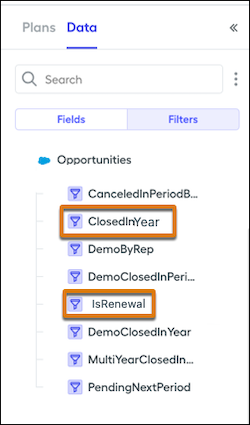
- Click Data, and then click Filters.
-
Select the ClosedInYear and IsRenewal filters.
-
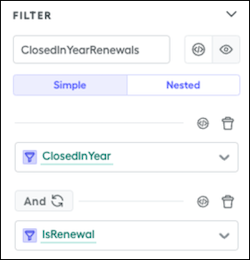
Create the ClosedInYearRenewals filter in Settings, on the right side.
-
Create a YTD Total Deal Renewals calculation.
-
In Plans, click the three dots next to the YTD Deal Renewals Attainment folder and select New Worksheet.
We use a worksheet because the calculation is a single data point.
-
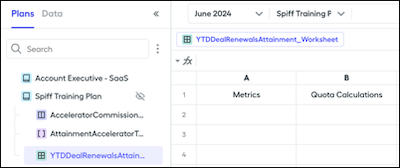
Name the worksheet YTDDealRenewalsAttainment_Worksheet and add the headers Metrics and Quota Calculations.
-
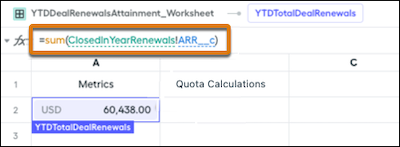
In the Metrics column, add a function that sums the
ARR__c field from the ClosedInYearRenewals
filter. Enter =sum(ClosedInYearRenewals!ARR__c). Update the display name and display format.
-
In Plans, click the three dots next to the YTD Deal Renewals Attainment folder and select New Worksheet.
-
Create data for renewals quota, which we use later in the calculation.
- In the YTD Deal Renewals Attainment folder, create a table named YTDDealRenewalsQuota.
- Add three reps, and fill out the table with the appropriate amounts.
-
Add the quotas data to the Create a YTD Total Deal Renewals calculation.
- Return to the YTDDealRenewalsAttainment_Worksheet.
-
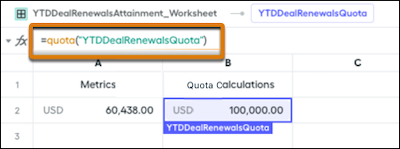
In the Quota Calculations column, add a function that references the
quota data. Enter =quota("YTDDealRenewalsQuota").
Update the display name and display format.
-
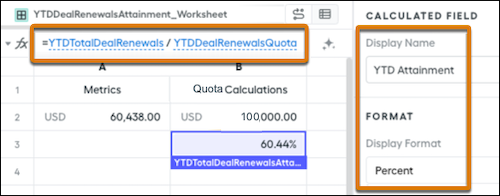
In a new row, divide YTDTotalDealRenewals by YTDDealRenewalsQuota.
Enter =YTDTotalDealRenewals/YTDDealRenewalsQuota.
Give the calculation a name, and update the display name and display
format.