
For lump-sum rules, the final payout calculation comes from a single cell in a worksheet. Worksheets contain formulas that have a single value, either entered directly or as the result of a formula. The result of 2 + 2 is 4, a single value. We don't calculate data for every record in the data filter that’s used.
Required Editions
| Available in: both Salesforce Classic (not available in all orgs) and Lightning Experience |
| Available in: Enterprise, Unlimited, and Developer Editions |
| Available for an additional cost in: Professional Edition with Web Services API Enabled |
| User Permissions Needed | |
|---|---|
| To create a lump-sum rule: |
A Spiff user role with these permissions turned on.
|
-
Create a folder for the rule.
- In Designer, click the three dots next to the plan you’re creating the rule for, and click New Folder.
- Rename the rule folder.
-
Create a quota table.
- Click the three dots next to the rule folder and select New Quota Table.
- Set up the quota table with reps, quotas, and change periods.
-
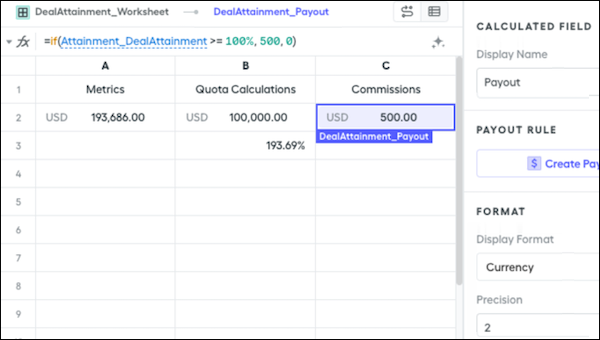
Create a worksheet in the rule folder.
- Click the three dots next to the rule folder and select New Worksheet.
- Set up the worksheet with labeled columns and functions, attainment, and commission fields,.
-
Add the new rule as a payout rule.
- Click a plan in the left panel and click New Payout Rule.
- Name the rule and select the commission calculation field as the payout amount.
After creating a lump-sum rule, calculate it.