
Line-by-line rules apply a calculation to each item in a data filter. To get the total for the rule, the calculation output from each item in the data filter is summed.
Required Editions
| Available in: both Salesforce Classic (not available in all orgs) and Lightning Experience |
| Available in: Enterprise, Unlimited, and Developer Editions |
| Available for an additional cost in: Professional Edition with Web Services API Enabled |
| User Permissions Needed | |
|---|---|
| To create a line-by-line rule: |
A Spiff user role with this permission turned on. Designer Configuration: Manage |
-
Create a folder for the rule.
- In Designer, click the three dots next to the plan you’re creating the rule for, and click New Folder.
- Rename the rule folder.
-
Create a datasheet in the rule folder.
- Click the three dots next to the rule folder and click New Datasheet.
- From the right panel, select the object and filter, such as the Deals object and ClosedInPeriod filter.
- Rename the datasheet.
-
Add fields such as ARR__c and CloseDate to the datasheet.
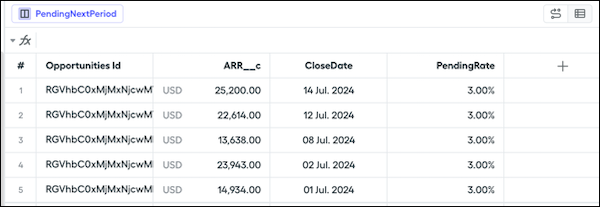
-
Create a commission calculation. Add a commission field and enter a calculation.
=CommissionRate*ARR__c -
If you don’t already have a commission rate calculation, hover over CommissionRate in the function bar, click New Field, and enter your calculation.
=if(ARR__c >= 20000, 5%, 3%) - Update the display name and format.
-
Add the new rule as a payout rule.
- Click a plan in the left panel and click New Payout Rule.
- Name the rule and select the commission calculation field as the payout amount.
After creating a line-by-line rule, calculate it.