In a Salesforce Spiff datasheet, add a related field that references data from a related object.
Required Editions
| Available in: both Salesforce Classic (not available in all orgs) and Lightning Experience |
| Available in: Enterprise, Unlimited, and Developer Editions |
| Available for an additional cost in: Professional Edition with Web Services API Enabled |
| User Permissions Needed | |
|---|---|
| To add a related field to a datasheet: |
A Spiff user role with this permission turned on. Designer Configuration: Manage |
- Create a one-to-one relationship between data tables.
- In a datasheet, click the + icon on the blank column to add a field.
-
Search for the field on the relationship's target object.
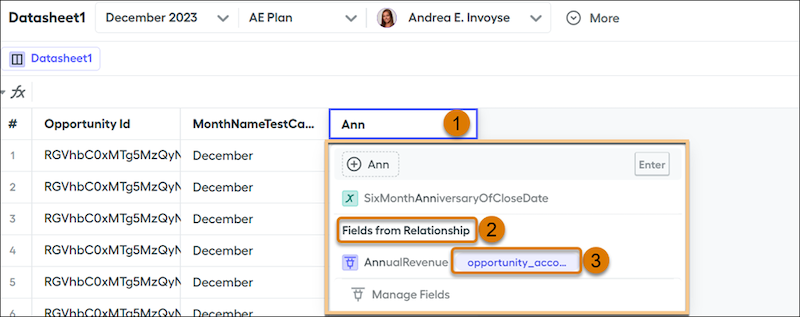
- Enter the field name (1).
- In the window that opens, under the Fields from Relationship heading (2), select the related field that you want to add (3).
- Enter a name for the related field and click Insert.
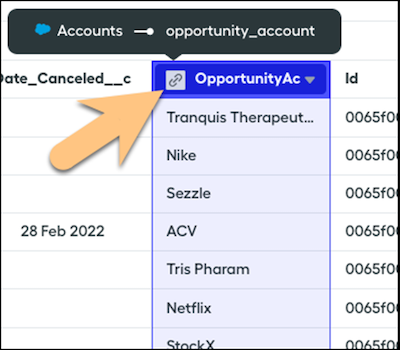
The datasheet shows a link icon on the added field. To view details about the relationship, hover over the link icon.