The View Related Records option on a record in a Salesforce Spiff datasheet shows you the record’s relationships to records on other objects. You can also access a related record from the Fields tab under Data.
Required Editions
| Available in: both Salesforce Classic (not available in all orgs) and Lightning
Experience |
| Available in: Enterprise, Unlimited, and Developer
Editions |
| Available for an additional cost in: Professional Edition with Web
Services API Enabled |
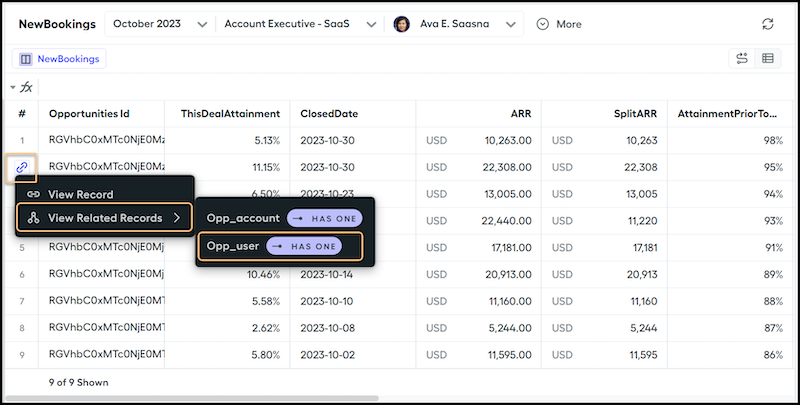
Hovering over a record on a datasheet shows a link icon in the leftmost column. To see the record’s relationships to records on other objects, click this icon and select View Related Records. For example, view the account and user records related to an opportunity.
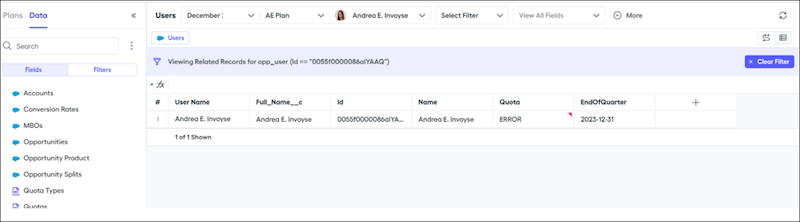
Clicking any of these relationship names goes to a new page and creates a sample data filter for all related records.
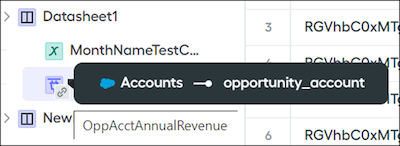
To access a related field from the left panel on the Data tab, hover over the link icon on a field for a tooltip that explains the source table and the relationship.
Related fields behave like datasheet fields and are available for reports.
To optimize memory usage, T=trace is turned off for related fields by default.