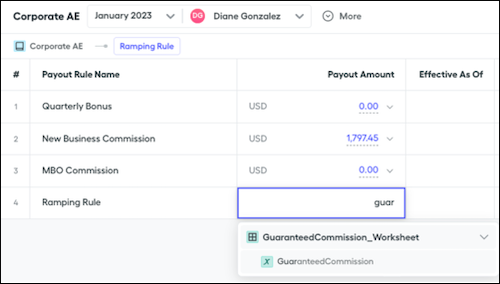
A ramp in Salesforce Spiff refers to a structured period of time for new hires to learn the company's products, processes, and sales strategies without the immediate pressure of meeting full quotas. Gradually increase quotas over time so new reps can build their pipeline and gain confidence in their selling abilities. A ramp is also called a guaranteed commission and is a common feature of many commission plans.
Required Editions
| Available in: both Salesforce Classic (not available in all orgs) and Lightning Experience |
| Available in: Enterprise, Unlimited, and Developer Editions |
| Available for an additional cost in: Professional Edition with Web Services API Enabled |
| User Permissions Needed | |
|---|---|
| To create a ramp with custom fields and worksheets: |
A Spiff user role with these permissions turned on.
|
Typically, companies structure ramps to allow commissioned employees to receive a gradually diminishing amount of guaranteed commission.
- In month 1, a new hire receives $2,000 of guaranteed commissions.
- In month 2, they receive $1,000 of guaranteed commissions.
- In month 3, they can receive $0 of guaranteed commissions.
As they gain experience, reps receive less guaranteed commission and more actual commission.
-
To create a list of ramp rates for each rep, add a custom field to every plan.
- From the Admin menu, click Settings.
- Under Custom Fields, select Plans, and then click Add Custom Field.
- Enter a name for the custom field, such as RampRates.
- For Field Type, select Expression.
- Save your changes.
- On the Plans page, under Custom Fields, click Modify.
-
Enter a list of ramp values by month since hire, where each month is separated by a comma, and save your changes.
(1, .66666667, .33333333, 0) - Optionally, navigate to other plans and enter plan-specific ramp values.
-
To calculate months into a ramp, create worksheet calculation, named MonthsIntoRamp, that uses the
months_to()function.Save the worksheet under one plan. Or, if the worksheet is referenced by multiple plans, save the worksheet in a top-level folder.=months_to(PlanAssignmentEffectiveAsOfDate, statement_period.end_date)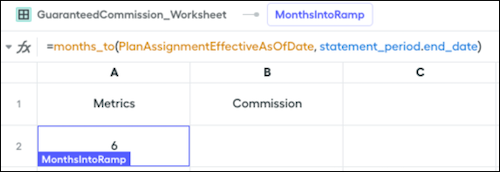 This formula calculates how many months have elapsed from the rep's Effective As Of date to the end of the statement period.
 -
To return the correct ramp rate, create another worksheet calculation, named RampRate, that uses the
choose()function.=choose(MonthsIntoRamp, plan.RampRates)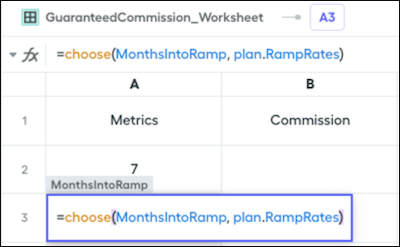 This formula uses the MonthsIntoRamp calculation to look up the number of months into the ramp, and returns the list of ramp rates from the RampRates custom field on the plan.
 -
To calculate the rep's guaranteed commission, create another worksheet calculation, named GuaranteedCommission, that multiplies the rep's on-target earnings by their ramp rate.
=5000 * RampRate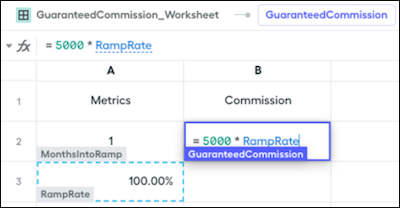
-
To add the GuaranteedCommission calculation to any plan, create the rule and define the payout amount as the output of GuaranteedCommission.