You can use list and array functions when creating payout rules in many scenarios.
Required Editions
| Available in: both Salesforce Classic (not available in all orgs) and Lightning Experience |
| Available in: Enterprise, Unlimited, and Developer Editions |
| Available for an additional cost in: Professional Edition with Web Services API Enabled |
| User Permissions Needed | |
|---|---|
| To create a payout rule: |
A Spiff user role with this permission turned on. Designer Configuration: Manage |
Count the Number of Users on a Team
In this scenario, the payout rule counts how many members are in a team. Use the members() function to return a list of all members for a specified team and use the count() function to count the members.
-
Create a datasheet field named NumberOfTeamMembers, and add the
members()function to it.Because you're counting the number of members, you don’t need data for specific user attributes, so you can use the list output of the function.=members("AE - North America") -
Add the
count()function.=count(members("AE - North America"))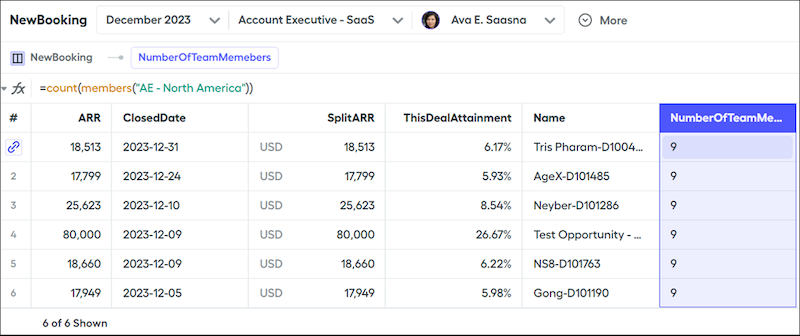
You can include this datasheet field in other calculations, showit on your rep statements, or keep it in the Payout Rule for admins to see as reference.
Sum Quotas for Members of a Team
In this scenario, the team lead’s quota is the sum of the quotas for all of their team members. Use the members() function to return a list of all members for a specified team, use the quotas() function to return the quotas of the members, and then sum the quotas for all members.
-
Create a worksheet calculation TeamMembersQuotaSum, and add the
members()function to it.Use a worksheet calculation because you're totaling team member quotas, but not calculating each deal.=members("AE - North America") -
Add the
quotas()function.The first argument is a user or a list of users that themembers()function returned. The second argument is the quota name. Then add a date range, such as the current statement period.=quotas(members("AE - North America", "QuaterlyQuota", statement_period_start_date, astatement_period_end_date)The
quotas()function returns a list of Quota objects. -
Add the
tranform_list()function, which transforms the list into an array that shows only one specific attribute, quota amount, from each record in the list.=transform_list(quotas(members("AE - North America", "QuaterlyQuota", statement_period_start_date, astatement_period_end_date), amount) -
Enclose the entire formula with the
sum()function and update the Display Format to Currency.=sum(transform_list(quotas(members("AE - North America", "QuaterlyQuota", statement_period_start_date, astatement_period_end_date), amount))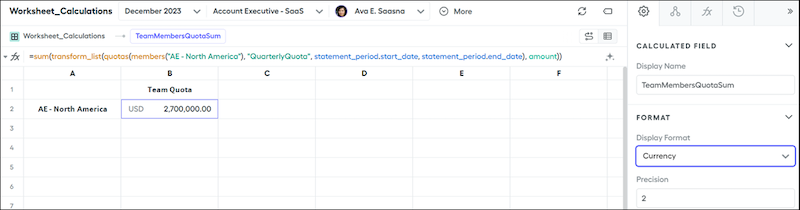
Identify the Products in One Deal
In this scenario, the payout rule identifies the different products included in each deal. Use a one-to-many relationship between the Opportunity object and the Opportunity Product object. The Opportunity object is like a list of all your deals, and the Opportunity Product object is like a list of every product sold with each deal. To connect these objects, match the OpportunityId on the Opportunity object with the OpportunityId on the Opportunity Product object.
-
Create a one-to-many relationship OpportunityToOpportunityProducts between an Opportunity object and an Opportunity Product object.

-
Create a datasheet field named ProductsOnDeals and add the relationship to the formula.
This field returns a list with the label SyncedRecord for every opportunity product record that's returned for each deal.
-
Add the
transform_list()function, which transforms the list into an array and shows the name of each product included in a deal.=transform_list(OpportunityToOpportunityProducts, Name)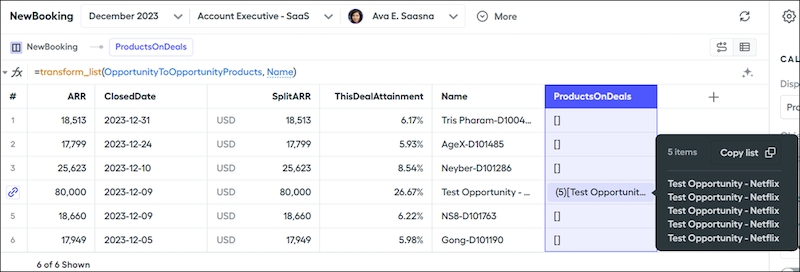
Some rows in the array return empty brackets, which means thatno products are included in the deal.
Combine Members of Two Teams
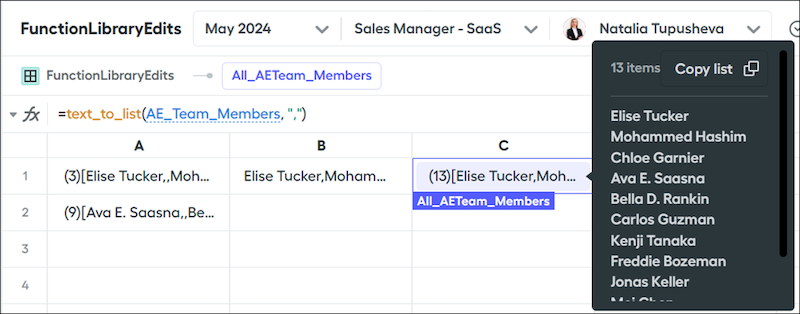
In this scenario, two teams have the same team lead and the payout rule builds a list of all members under the team lead. Turn an array of team members from a single team into a comma-separated string, combine the string with other comma-separated strings of user names, and turn the string back into an array.
-
Convert your lists into comma-separated strings.
AE_EMEA = transform_list(users_in_team(team("AE-EMEA"),statement_period_start_date, astatement_period_end_date), concat([name,","])) AE_NA = transform_list(users_in_team(team("AE-NorthAmerica"),statement_period_start_date, astatement_period_end_date), concat([name,","])) -
Add the
concat()function, which combines the comma-separated strings of the two calculations. Tip You can see the entire comma-separated list when hovering over the worksheet cell.
AE_Team_Members = concat([AE_EMEA,AE_NA]) -
Add the
text_to_list()function, which transforms the comma-separated string into an array, All_AETeam_Members.All_AETeam_Members = text_to_list(AE_Team_Members,",")