
If you have the Salesforce Spiff Commission Admin permission set, create a Salesforce report based on the opportunities with commission data. To help you get started, the Spiff Commission Estimator provides a default custom report type, Opportunities with Spiff Estimated Commission Data.
Required Editions
| Available in: both Salesforce Classic (not available in all orgs) and Lightning Experience |
| Available in: Enterprise, Unlimited, and Developer Editions |
| Available for an additional cost in: Professional Edition with Web Services API Enabled |
| User Permissions Needed | |
|---|---|
| To create Salesforce reports: | (Salesforce) Report Builder (Lightning Experience) |
Only users with the Spiff Commission Admin permission set can create a report. Users who don't have this permission set can see the custom report type, Opportunities with Spiff Estimated Commission Data, but can't access any of the fields to create a report. Instead, these users can build a commission report in Spiff.
- From the App Launcher, go to Reports.
-
Click New Report and get started with these details.
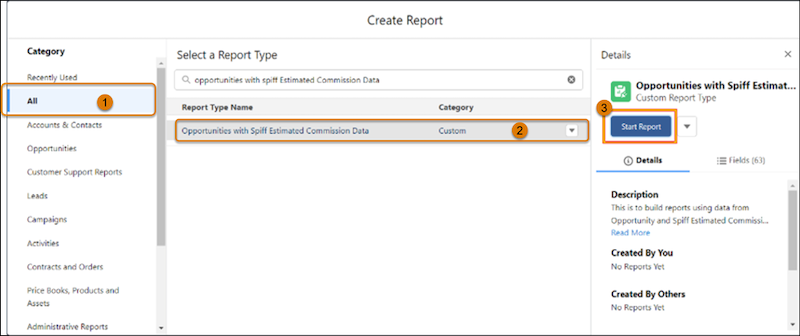
- In the Category column, select All (1).
- For report type, search for Opportunities with Spiff Estimated Commission Data, and select it (2).
- In the Details column, click Start Report (3).
-
To show data from more fields on the Spiff Commission Data custom object, add columns.
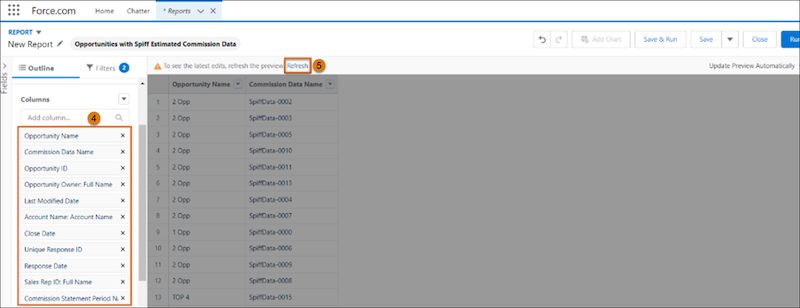
- On the Outline tab, select a field from the Add column dropdown (4).
- Click Refresh (5).
- Optionally, add filters to the report, such as opportunity stage or close date.
- Click Save & Run.