
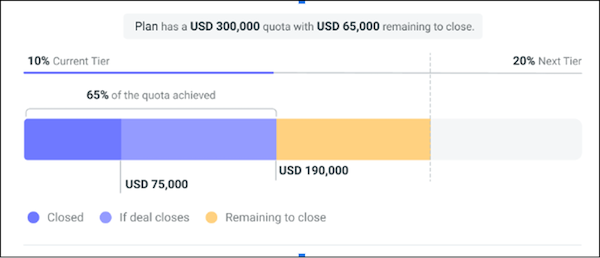
The Commission Estimator window in the Salesforce Spiff Commission Estimator provides a bar graph that shows how much an estimated deal affects quota attainment. In Designer, create a quota payout rule for use with the quota attainment graph. The payout rule has several requirements.
Required Editions
| Available in: both Salesforce Classic (not available in all orgs) and Lightning Experience |
| Available in: Enterprise, Unlimited, and Developer Editions |
| Available for an additional cost in: Professional Edition with Web Services API Enabled |
| User Permissions Needed | |
|---|---|
| To create a payout rule: |
A Spiff user role with this permission turned on. Designer Configuration: Manage |
Before you create the rule, review these requirements.
- If users belong to multiple plans, they can have multiple quotas, so choose the most important quota to show the graph for.
- If a commission plan doesn't use quotas or quota attainment, create the payout rule and data filter anyway. In this case, the filter doesn't return any result, and the graph is hidden.
- If more than one plan uses the Spiff Commission Estimator, the payout rule must be the same for all plans that use the same object. If the plans have different formulas for the required fields, create a lookup table, based on the plan name, that provides the appropriate field values dynamically.
-
In Designer, create a payout rule with these requirements.
Name sce_chart_opportunity or sce_chart_quote, depending on the object used in the plan Ghost rule True See Payout Rules. This rule isn't visible in plan commission statements but is required for the bar graph. If you use both the Quote and Opportunity objects, create a rule for each object. -
Create a data filter on the payout rule, and specify these requirements.
- Return only one opportunity or quote when an estimate is requested, per plan. If the data filter returns multiple opportunities or quotes, the Spiff Commission Estimator shows an error.
- If the payout rule uses the Quote or Quote Line objects, create the data filter on the Quote object only.
- If the payout rule uses the Opportunity or Opportunity Product objects, create the data filter on the Opportunity object only.
- Set up the fields that provide data to the graph.