
To let the Salesforce Spiff Commission Estimator managed package work with data in Salesforce, generate Client ID and Client Secret security credentials in Spiff. Then, enter those credentials in Salesforce.
Required Editions
| Available in: both Salesforce Classic (not available in all orgs) and Lightning Experience |
| Available in: Enterprise, Unlimited, and Developer Editions |
| Available for an additional cost in: Professional Edition with Web Services API Enabled |
| User Permissions Needed | |
|---|---|
| To manage API access in Spiff: |
A Spiff user role with this permission turned on. OAuth Integrations: Manage |
| To manage Spiff Connect app in Salesforce: | (Salesforce) Spiff Commission Admin permission set |
Generate the Client ID and Client Secret in Salesforce Spiff
- Log in to Spiff as an admin.
- From the Admin menu, select Settings and then select API Access Management.
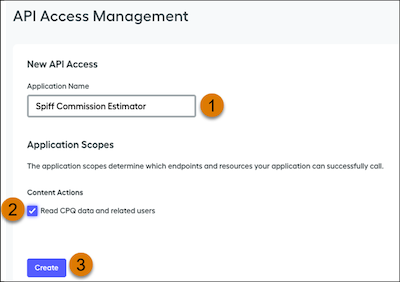
- For Application Name (1), enter Spiff Commission Estimator.
- Under Content Actions, turn on Read CPQ data and related users (2).
- Click Create (3).
-
From the window that appears, copy the Client ID and Client Secret.
If you close the window without copying these values, there’s no way to recover them.
Enter the Client ID and Client Secret in Salesforce
- Log in to Salesforce as an admin with the Spiff Commission Admin permission set.
- From the App Launcher, go to Spiff Connect.
- On the Spiff Connect tab, enter the Client ID and Client Secret that you copied.
-
Enter a Client Domain, depending on your region.
- If you’re in the US, enter us1.spiff.com.
- If you’re in the EU, enter eu1.spiff.com.
- Save your changes.