After you connect a Salesforce environment to Salesforce spiff, you can swap the connected environment for a different one, such as switching between production or sandbox. Or if you're a new Spiff admin who inherited a Salesforce connector that a different admin previously authenticated, reauthenticate the connector with the same credentials.
Required Editions
| Available in: both Salesforce Classic (not available in all orgs) and Lightning
Experience |
| Available in: Enterprise, Unlimited, and Developer
Editions |
| Available for an additional cost in: Professional Edition with Web
Services API Enabled |
Swapping Orgs
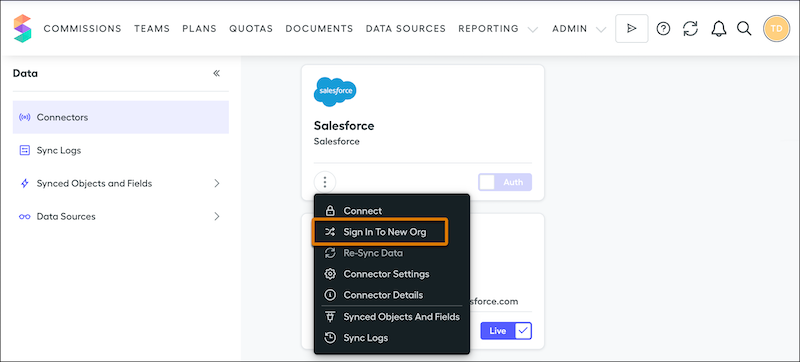
To sign in to a different org, click the three dots on the connector and select Sign In To New Org.
In the window that appears, click New Sign in, select a sandbox or
production environment, and continue with authenticating to the new org. See Add a Salesforce Connector.
Plan for these changes when you connect to a different org.
- To avoid accidentally connecting Spiff to the wrong Salesforce org, log out of all Salesforce orgs that you’ve been using in your browser.
- When you change the connected org, Spiff doesn't delete any mappings, fields, or data. If the new connected environment uses the same object schema as the previous connected environment, Spiff reuses the previous data mapping. If you plan to swap between sandbox and production, make sure that the object schema of the sandbox environment matches the object schema of the production environment. See Create or Edit Sandbox Templates.
- Only one Salesforce connector can map to the Spiff user object. If you set up another Salesforce connector and try to map to the Spiff user object again, Spiff prevents you from proceeding.
Reauthenticating a Connector
If a different admin previously authenticated the connector, the new admin must reauthenticate with the same credentials.
To see which user previously authenticated the connector, click the three dots on the connector card and select More Info.
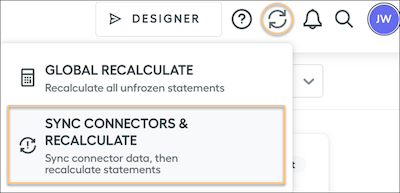
To reauthenticate the connector, click the three dots on the connector card and select Reauthenticate. After establishing the connection, click the Global Sync Actions icon.