
Align business units with your business objectives when you segment records and assignments by location, industry, and any demographics from your data sources in Sales Planning.
Required Editions
| Available in: both Salesforce Classic (not available in all orgs) and Lightning Experience |
| Available for an additional cost in: Enterprise, Performance, Unlimited, and Developer Editions with Sales Planning in English only, and only if you have Web Services API enabled |
| User Permissions Needed | |
|---|---|
| To establish hierarchies: |
One of these:
AND One of these:
|
- In Sales Planning, select your sales plan, and then click Create Segments.
-
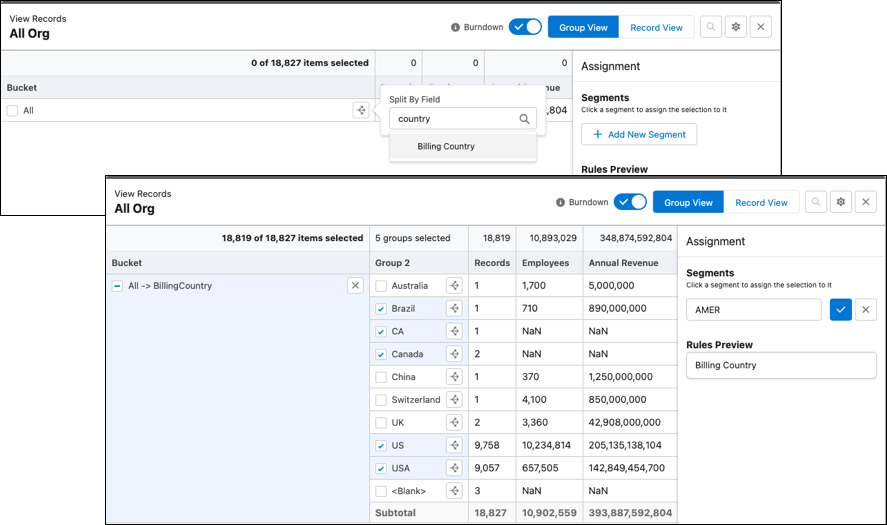
Segment from the top part of your sales hierarchy, and then assign users and records to
those segments. Split the top segments by a field. Click Add New
Segment, and then give it a name.
For example, you segment by country, so you split your segment by Billing Country.Create other segments from splits, or further split segments into smaller ones when you select specific fields depending on your goal. For example, you create a segment for the AMER region that includes accounts in the Americas.
-
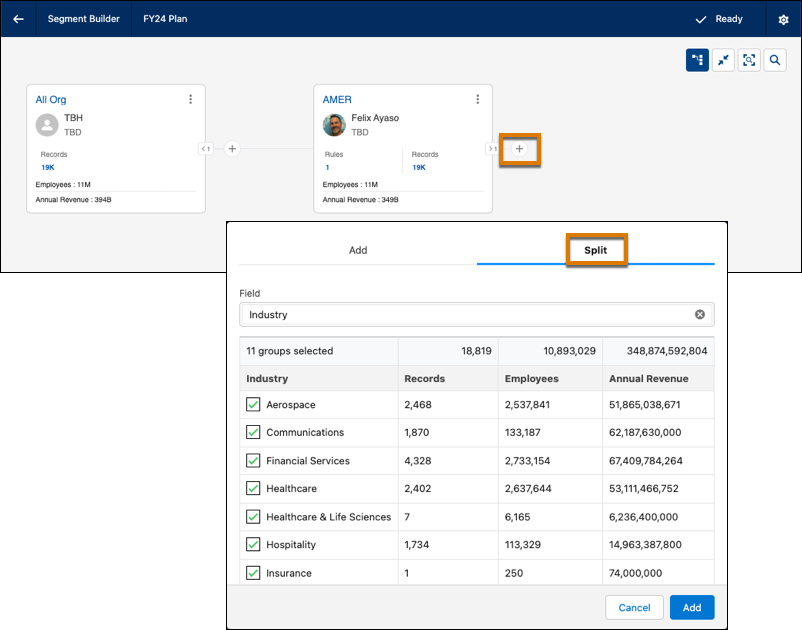
Further split segments depending on your business objectives. For example, segment by
industry.
For example, you further segment AMER by industry.
- Delegate planning authority to team leaders and members from any segment.
- Save your changes.