Show the layers that managers and operations want to appear when reps start their
sessions in Salesforce Maps. That way, your reps can jump right into their work without searching
for critical details. For example, set marker and ArcGIS layers that give reps more context for
sales and service work in their respective areas.
Required Editions
| User Permissions Needed |
| To customize settings: |
Customize Application |
Plot an Individual Layer
-
On the Recent or Saved tab, go to the marker layer that you want to plot when Salesforce Maps opens.
Layers listed under the On The Map tab don’t have the same menu options.
-
Click the three dots menu next to the marker layer and select Toggle Plot on Load.
Plot a Group of Layers
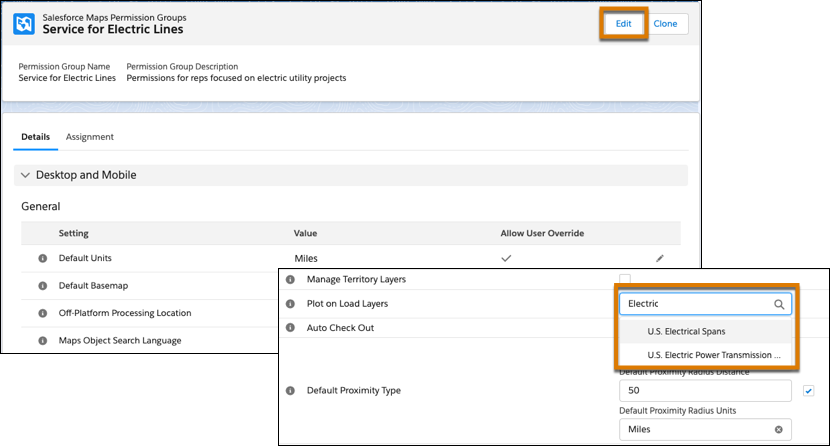
Alternatively, plot a group of layers that are assigned to the same permission group.
-
From Setup, in the Quick Find box, enter Installed Packages, and then select Installed Packages.
-
Find the Salesforce Maps package and click Configure.
-
From the left menu, select Permission Groups.
-
Select a permission group.
-
Edit the permission group, scroll to the Layers section and search Plot on Load Layers for the layers that you want to plot.
-
Save your changes.
Layer icons change to indicate that they plot on load. The Recent tab lists other layers that currently plot on load.